

IT service
IT service
ChemDraw Professional
ChemDraw is the de facto standard amongst chemical structure editors. Having been on the market since 1985, it has evolved into a comprehensive software suite designed to facilitate communication and efficiency in chemical research. Its tools enable the simple and efficient creation of chemical structures and diagrams of publication quality. ChemDraw helps to transform ideas and drawings into professional presentations, reports and publications (from the manufacturer’s website). Further information
Campus licence
Since 24 September 2012, the university has had access to the above-mentioned software package under a campus licence, initially for a period of three years. In 2021, the subscription was renewed again until 2024. The current version as at 8 March 2023 is 22.2.
Note regarding expiring licences: if, when you start ChemDraw, you receive a message stating that the licence has expired, it can easily be renewed for the new period: under the ‘Help’ menu item in ChemDraw, select ‘Activate ChemDraw...’. Select “Activate over Internet” there.
Important information regarding access to ChemDraw is summarised below.
All staff and students can gain access to ChemDraw. You must first register via the following link:
informatics.perkinelmer.com/sitesubscription/
First, please search for “University of Oldenburg”. There, click on the registration button for the desired product. When registering, you must provide an @uni-oldenburg.de email address (please do not use abbreviated forms such as “@uol.de”)! Once you have successfully logged in to the PerkinElmer Download Centre, you will be taken to an overview page.
If you have already registered, you can proceed directly via
https://perkinelmerinformatics.flexnetoperations.com/
. There, select ‘Download Now’ for the latest entry – usually on the far right – to proceed to the next menu.
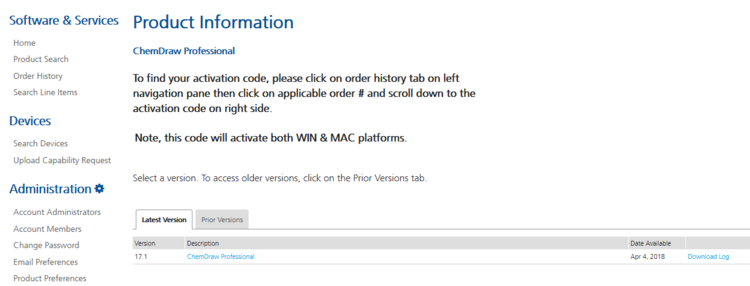
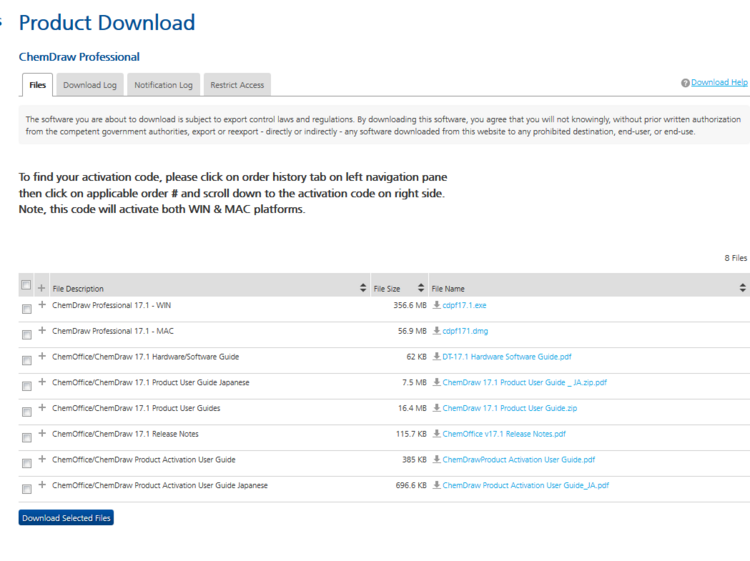
Select your package, download it and install it. When starting the installation programme, you may be asked for a serial number or an activation code. Please ignore this. After the message that an activation code is required when you start the programme for the first time, you can install the programme.
You can obtain this by clicking on List Entitlements in the overview in the left-hand menu and then entering the activation code in the line of the current Entitlement ID (currently ORD43224SL) and then copying/noting the corresponding code. It is also displayed again on the product download page.