Kontakt

IT-Management

+49 (0)441 798-4262

A5 1-177 (Lageplan) 

ADDRESS

Carl von Ossietzky Universität Oldenburg
Faculty II - Computer science, economics and law
Ammerländer Heerstraße 114-118
26129 Oldenburg

Kontakt

IT-Management

+49 (0)441 798-4262

A5 1-177 (Lageplan) 

ANSCHRIFT

Carl von Ossietzky Universität Oldenburg
Fakultät II - Informatik, Wirtschafts- und Rechtswissenschaften
Ammerländer Heerstraße 114-118
26129 Oldenburg

Setting up network printers (PrintServer)

Setting up network printers via print server

1. setting up a network printer provided by a print server

On newer installations, a shortcut with the name "PrintServer-UniOL" is available on the desktop. If this is the case, continue with step 4.

If you do not know whether the desired printer is available on the PrintServer, follow these instructions anyway.

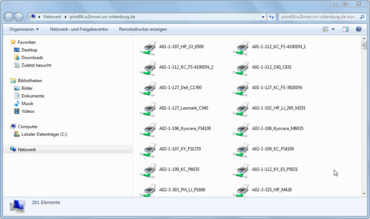
Once the link has been set up, the printers can be viewed sorted by room number. If your printer cannot be found there, use the following instructions.

Step 1
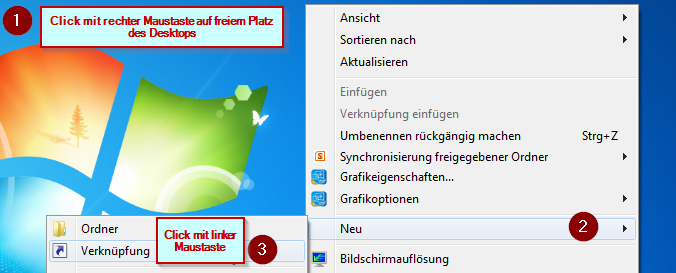
Right-click on an empty area of the Windows desktop.

Select the menu item "New" and "Shortcut" to create a shortcut to the PrintServer.
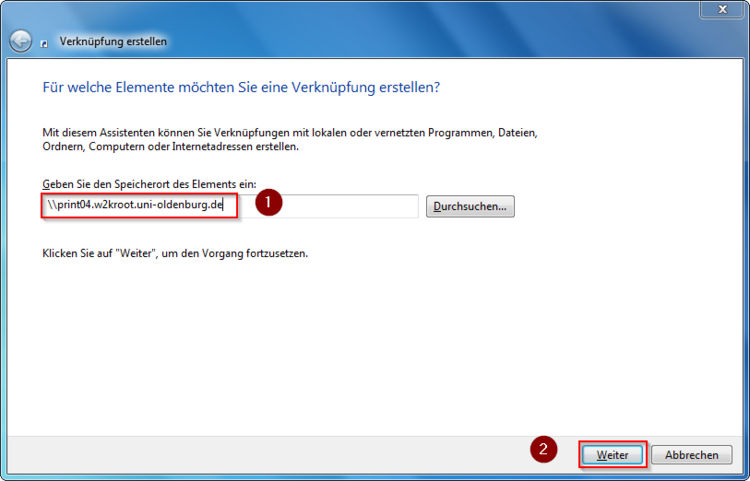
Step 2

Enter the address of the print server in the field labelled (1) and click on "Next" (2).

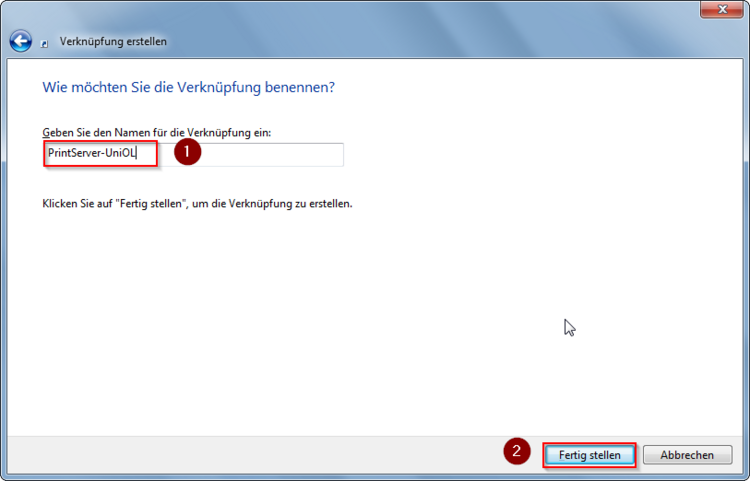
Step 3

Name the link. Theoretically, you can choose any name you like. For the sake of standardisation, please select the name "PrintServer-UniOL".

Step 4
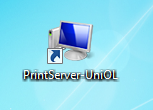
The shortcut with the name you selected in step 3 appears on the desktop.

Double-click this shortcut.
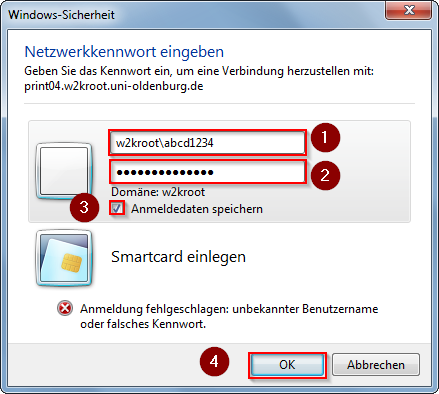
Step 5

Enter your login details.

These have the following form: Domain\Anonymised login

For example:
w2kroot\abcd1234

Step 6

Double-click on the desired printer for which you are authorised.
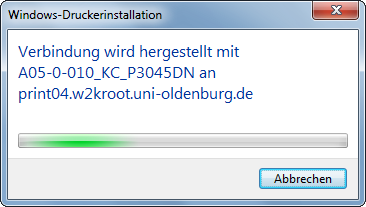
This is installed automatically and is then ready for printing.

(Changed: 11 Feb 2026)  Kurz-URL:Shortlink: https://uol.de/p55799en
Zum Seitananfang scrollen Scroll to the top of the page

This page contains automatically translated content.