Kontakt

IT-Management

+49 (0)441 798-4262

A5 1-177 (Lageplan) 

ADDRESS

Carl von Ossietzky Universität Oldenburg
Faculty II - Computer science, economics and law
Ammerländer Heerstraße 114-118
26129 Oldenburg

Kontakt

IT-Management

+49 (0)441 798-4262

A5 1-177 (Lageplan) 

ANSCHRIFT

Carl von Ossietzky Universität Oldenburg
Fakultät II - Informatik, Wirtschafts- und Rechtswissenschaften
Ammerländer Heerstraße 114-118
26129 Oldenburg

Setting up network printers (IP address)
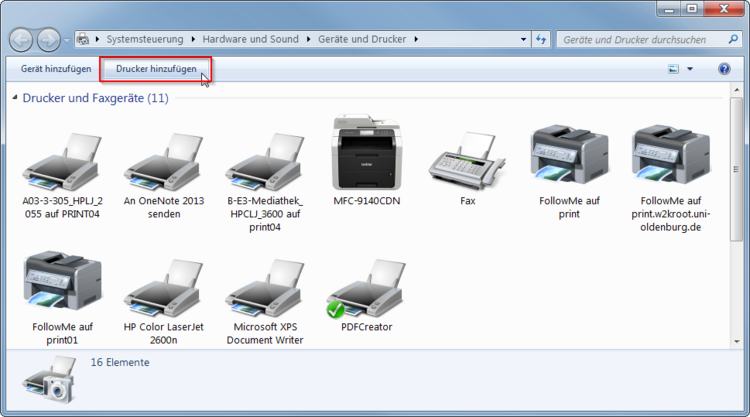
Step 1

Open Devices and Printers and click on "Add printer".

Step 2

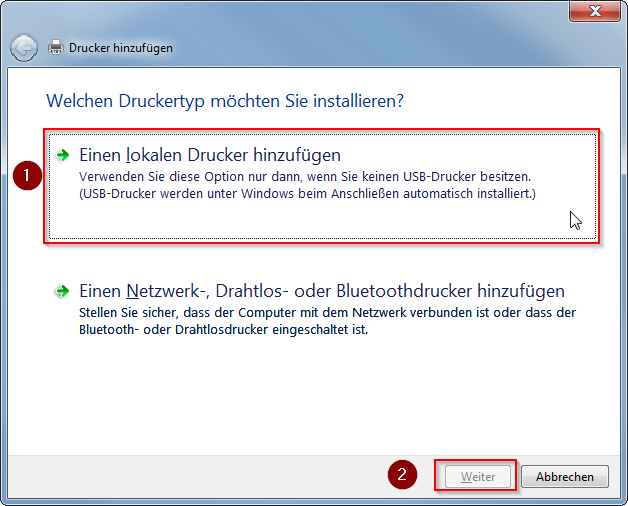
Select "Add a local printer" and then click Next.

Step 3

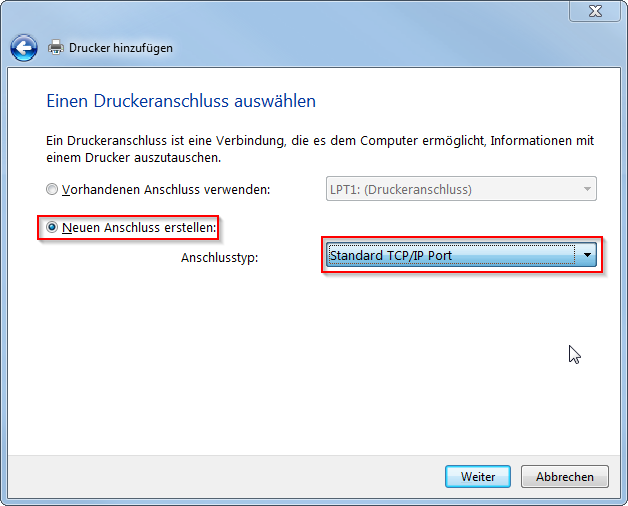
Click on "Create new connection:" and select "Standard TCP/IP port" from the list. Then click on Next.

Step 4
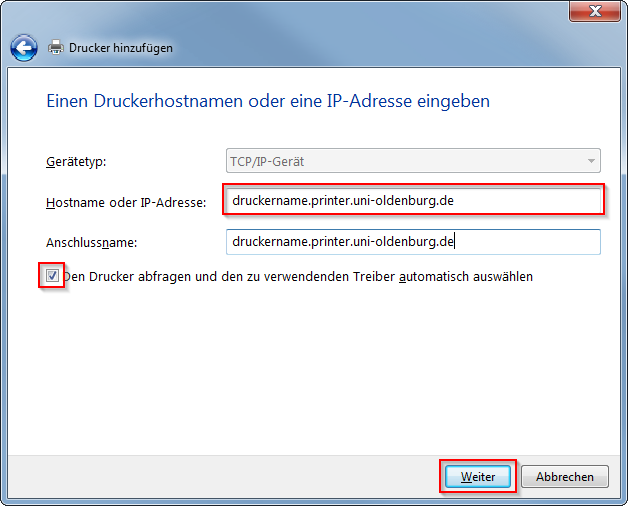
Assign a printer name for "Host name or IP address:" and "Connection name:" and enter ".printer.uni-oldenburg.de" in both fields as described. Then tick the box "Query the printer and automatically select the driver to be used" and click Next.

Step 5
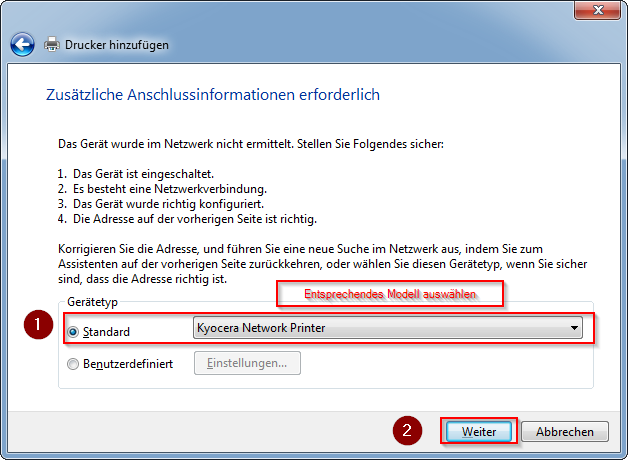
Select the "Standard" device type and select the corresponding model from the list. Then click on Next.
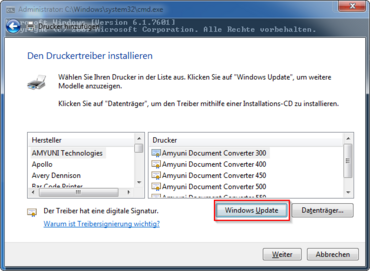
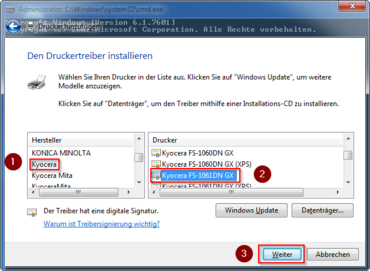
Step 6

If the device cannot be found, press the "Windows Update" button to search for other models. Then select the manufacturer and printer model from the lists and click Next.

Step 7

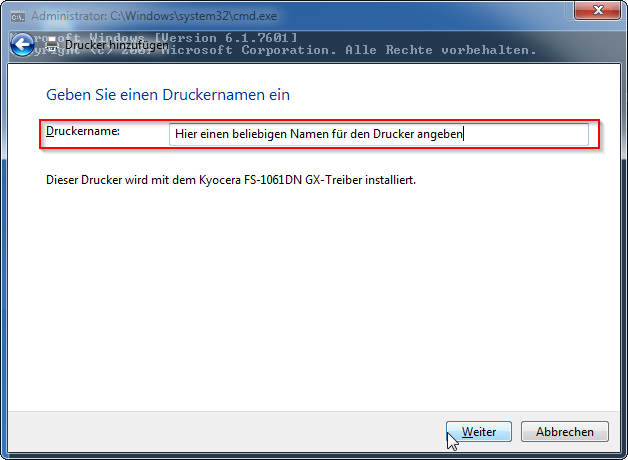
Enter your own printer name (this appears when printing a document) and then click Next.

Step 8

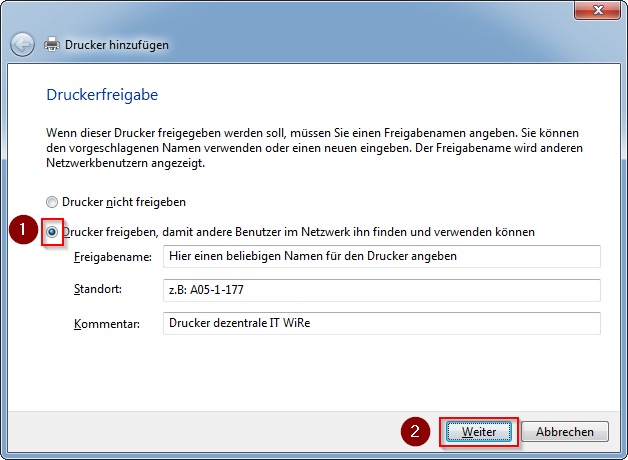
Click on "Share printer so that other users on the network can find and use it", enter the selected printer name under "Share:", the current location under "Location:" and a description of the printer under "Comment:" and then click on Next.

The printer should now be fully set up.

(Changed: 11 Feb 2026)  Kurz-URL:Shortlink: https://uol.de/p55800en
Zum Seitananfang scrollen Scroll to the top of the page

This page contains automatically translated content.