
Functional account
Functional account
A functional account is a user account that is not assigned to an individual person, but to an organisational unit, a project or a function. This makes it possible, for example, to have email addresses such as projektname@uol.de or institutsname@uol.de with their own email inbox.
What you can do with it
- Emails received in a functional account can be forwarded to be forwarded to .
- Several people can use the functional account at the same time, e.g. its email inbox.
- If the person responsible for a functional mailbox is away on holiday, another person can also be authorised to take over the correspondence on their behalf.
- Services such as cloud storage/Nextcloud can be used.
What is not possible
- Functional accounts do not have ‘Lecturer’ status in Stud.IP and are therefore unable to create or moderate mailing lists.
- Functional accounts are not transferred to the DFN-AAI infrastructure and cannot use EDUROAM Wi-Fi.
- By default, there is also no Wi-Fi access for functional accounts on the university campus. (If this is required, it must be explicitly mentioned and justified when submitting the application.)
- Functional accounts cannot download software intended for individual use
- Functional accounts do not have access to the library’s personalised services.
Apply for a functional account
Notes:
A functional account is set up via an automated workflow:
Please send any other enquiries regarding the functional account by email to:
Validity of functional accounts
Account retention period and deletion
Guest, course and functional accounts are deleted after 180 days of inactivity. One month beforehand, you will receive an email informing you that your account is due to be deleted. If you reply to this email, you will be given the option to postpone deletion for a further 180 days. Only if you fail to reply within one month of this notification will your account, along with all its contents, be irrevocably deleted.
Assignment to an individual
A functional account must always be assigned to a person who is currently employed by the University. Staff members who are due to leave the University will be informed of the functional accounts for which they are responsible and advised that a new person must be assigned to take responsibility for the account. If this is not done, the functional account will be suspended and subsequently deleted.
How do I add a valid work account to my Outlook?
Outlook desktop application
These instructions are intended to help you set up or switch your account yourself.
We need to distinguish between two scenarios here.
Scenario 1: The email address you want is already set up on your device with login details.
Scenario 2: The email address you want is not yet set up on your device.
Please check for yourself whether the email address is already set up on your device (Scenario 1) or whether the email address you want is not yet displayed in Outlook (Scenario 2).
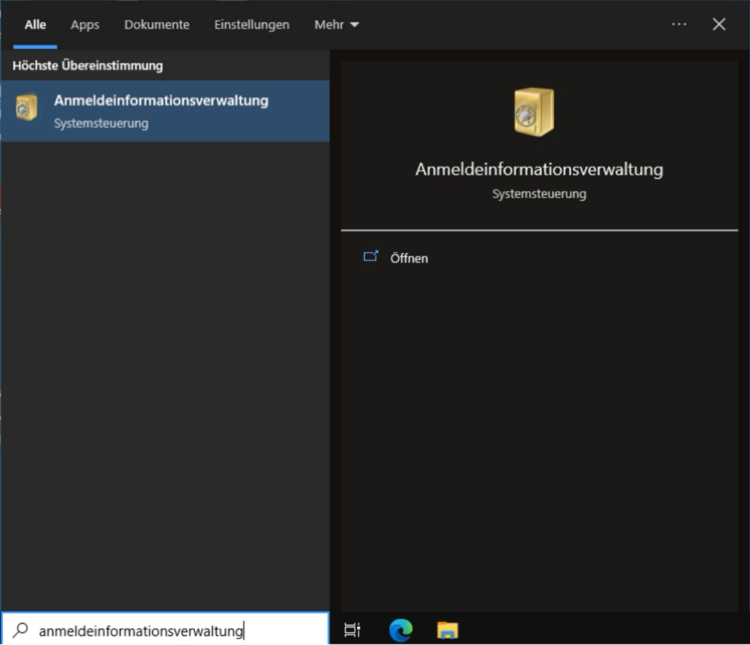
Case 1 – The email address you want to use is already set up on your device with login details
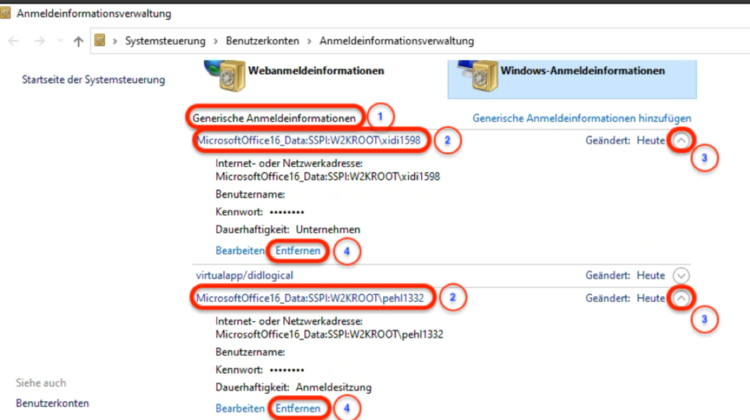
First of all, please check whether the login details for the email address have already been entered into your system. To do this, follow the steps described here. If the login details have already been set up, you must remove them as described. Only then can the account be set up automatically, as described in Case 2.

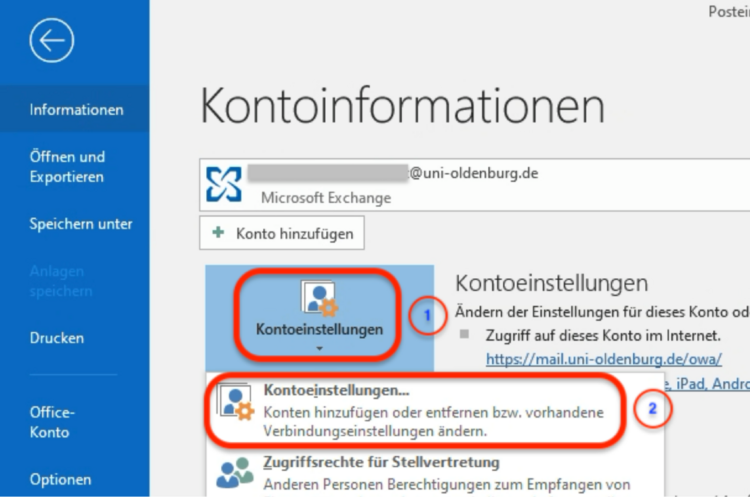
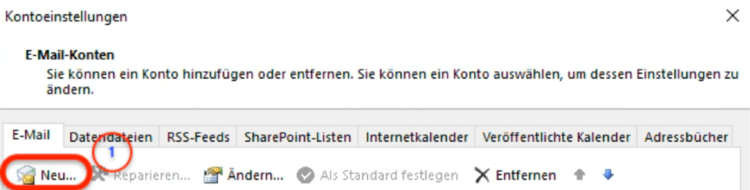
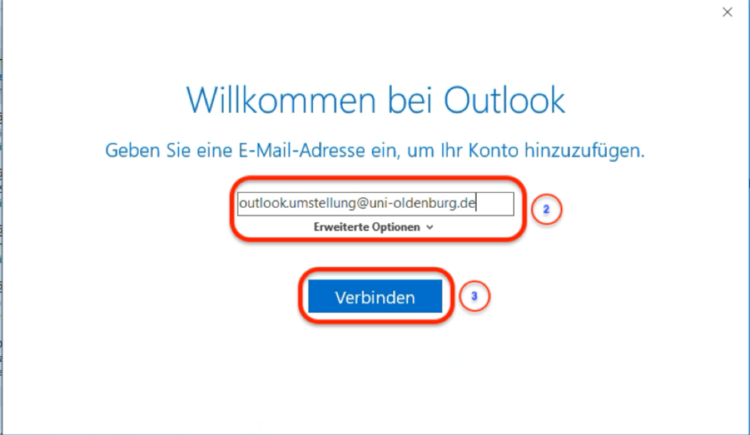
Case 2 – The email address you want has not yet been set up in your Outlook
account

Outlook Web App (OWA)


I use several functional accounts – how do I access them all?
To access role-based accounts, you first need the relevant authorisation. The person responsible for a role-based account can grant you the necessary authorisation. If you are the person responsible, you automatically have authorisation for that account.
You can set up email access for functional accounts yourself via Outlook – either in the desktop programme or in the Outlook Web App (OWA). You do not need the password for the functional account to do this; you only need its full email address (e.g. funktion-email-name@uni-oldenburg.de).
You can set up several role-based accounts in Outlook at the same time. This gives you simultaneous access to your personal mailbox and the mailboxes of the role-based accounts.
To find out how to access not only emails but also other areas of the functional account (e.g. cloud storage or StudIP), please refer to the section on two-factor authentication below.
How can I set permissions for a function account?
- You can set the permissions for a function account yourself via the self-service portal.
- Click on ‘Application’ in the top menu.
- An overview of various functions will open (see image below).
- Under the heading ‘User accounts’, click on the ‘Authorised users for FKT account’ field.
- This will open the settings for function accounts.
- First, select a function account – this is only possible if you are assigned as the person responsible for it.
- You can now add or remove other authorised users for the selected function account. The selected users can access the function account’s email inbox and use two-factor authentication for the function account.

How can I apply to be granted permission to manage a functional account?
- To manage a functional account yourself, you must apply for this via the self-service portal.
- Click on ‘Application’ in the top menu.
- An overview of various functions will open (see image below).
- Under the heading ‘User accounts’, click on the ‘Authorised users for FKT account’ field.
- This will open the settings for function accounts.
- On this page, there is a selection for ‘Request administration of another functional account’ at the bottom.
- You can now use the search function to find the required function account and request administrative rights for it.
How can I transfer responsibility for a functional account to another person?
Would you like to transfer full responsibility for a functional account to another person?
- Log in to the self-service portal.
- Click on ‘Application’ in the top menu.
- An overview of various functions will open.
- Under the heading ‘User accounts’, click on the ‘My user accounts’ field.
- The ‘Manage my user accounts’ page will now open. There, you can make a selection of the relevant functional account and the person who is to take responsibility for it.
- In doing so, you will lose responsibility for and access to the functional account.
If you wish to retain access to the functional account, the new person in charge must grant you authorisation again.
Would you like to grant another person access to the functional account, whilst remaining the person responsible for it yourself?
There are two ways to do this:
- Either you add the other person in the settings for the functional account. To do this, you must be the person responsible for the functional account.
- Or the other person can submit a proposal to become a co-administrator of the role account themselves. This proposal must then be approved by the person responsible.
The following information applies to the transition to two-factor authentication (2FA) for functional accounts in October 2026
Special handling of two-factor authentication (2FA) for functional accounts
Just as with individual university accounts, 2FA provides additional protection for functional accounts too. The following sections describe how 2FA is used specifically with functional accounts and what you need to bear in mind. General information on two-factor authentication can be found on the relevant information page.
What is the login process like for functional accounts using 2FA?
Visually, the login process for functional accounts looks exactly the same as you are already familiar with from personal accounts. However, there is one technical difference:
- First, you must enter the login details for the functional account, i.e. the account name and password.
- You must then also enter your personal second factor. For functional accounts, you must use a one-time password (‘TOTP’) for this; a ‘YubiKey’ (FIDO2) cannot be used. You can find out how to set up this second factor in the next section.
If you only wish to access the email inbox of a functional account, you do not need a second factor. 2FA is only required to log in to other services such as cloud storage or StudIP. Consequently, it may be the case that only the person responsible for the account knows the functional account’s password and, where applicable, has linked their second factor to the functional account.
Setting up 2FA for a functional account
Each functional account you wish to access must be linked to the second factor of your personal account. This must be set up by the person who manages the functional account. Since October 2026, this has been possible directly via the self-service portal – as explained in the section above.
In order for your second factor to be linked to a functional account, you must first set up this second factor yourself for your own account (if you have not already done so). You can find out how to do this on the 2FA information page.
However, there is a technical caveat: you cannot currently use the YubiKey (FIDO2) in the usual way as a second factor for functional accounts! Instead, you must either set up the one-time password (‘TOTP’) function via the app or set up the YubiKey separately using one-time passwords (TOTP):
Using the YubiKey to log in to functional accounts
The use of a Yubikey as described here is in accordance with the service instruction on the use of two-factor authentication (Full text of the service instruction available on the administration portal).
If you do not have a (work) mobile device, you can alternatively set up your Yubikey using a one-time password. The Yubikey supports time-based one-time passwords (TOTP). To do this, you will need the Yubico Authenticator app. First, you must set up the one-time password method as explained below. Subsequent use is then very straightforward, as explained in the final section.
Setting up 2FA with the Yubico Authenticator
Install and launchYubico Authenticator
- You can find and install the Yubico Authenticator programme via the Software Kiosk if your device is part of the University of Oldenburg’s Windows domain. If you are using a self-managed device, you can download the programme from the Yubikey manufacturer’s website.
- Launch the Yubico Authenticator programme.
- Plug your YubiKey into a USB port on your device. (If your device is NFC-enabled, simply place the YubiKey on top of it.) The programme will recognise the YubiKey automatically.
- Leave the programme open whilst you proceed with the next steps.
Setting up the one-time password (TOTP) login method
- Now, open the University of Oldenburg’s 2FA portal in a separate browser window and log in. Use the login details for your personal university account!
- On the homepage of the 2FA portal, select the ‘+’ button.
- You will now see a selection of ‘available authentication methods’. Select the ‘One-time password (TOTP)’ option here.
- An input form will open (see image below; click to enlarge); please complete it as follows:
- Display name: You can keep the suggested name for the TOTP method or choose your own name.
- Category: Select ‘Standard’ if you are setting up a one-time password for the first time. If you are setting up a second one-time password, ‘2ND_Token’ will appear here.
- Service name: Enter ‘University of Oldenburg’ here.
- Account name: Enter your personal account name here, which consists of 4 letters and 4 numbers.
- ‘OATH token’: Leave this field exactly as it is.
- Now select the ‘Manual TOTP’ field at the bottom, which will then expand.
- A ‘Secret’ field will appear. Tap the padlock icon next to the field. This will reveal the secret key.
- Highlight the secret key and copy it. Now make sure you proceed straight away to the next step in the Yubico Authenticator. Do not accidentally paste the secret key anywhere else – only into the Yubico Authenticator!

Transferring the secret key to the Yubico Authenticator
- Switch back to the Yubico Authenticator programme.
- Select ‘Accounts’ from the menu on the left.
- Now select ‘Add Account’ in the top right-hand corner.
- An input form will open (see image below). Fill in the form as follows:
- Issuer: Enter ‘University of Oldenburg’ here.
- Account name: Enter your personal account name here, which consists of 4 letters and 4 numbers.
- Key: Enter the secret key here that you copied earlier from the 2FA portal.
- Confirm by clicking ‘Save’.
- Now return to the 2FA portal. Select ‘Save’ there as well to complete the setup. You can now use the one-time password login method, as described in the next section.

Using 2FA with the Yubico Authenticator
If you are logging in to your personal university account or a functional account using the one-time password, proceed as follows:
- When you log in, for example in your browser, the service will ask for a 6-digit code.
- Plug the YubiKey into your computer.
- Open the Yubico Authenticator programme.
- The 6-digit code will be displayed in Yubico Authenticator.
- Copy the code or make a note of it.
- Return to the login window, paste the code there and confirm.
- Please note: The code changes every 30 seconds – this is part of the security protocol. (Tip: a code that has just expired would still be valid for a few seconds, as there is a technical time tolerance).