

IT service
IT service
ChemDraw Professional
ChemDraw is the quasi-standard of chemical structure editors. On the market since 1985, it has developed into a comprehensive software suite designed to facilitate communication and efficiency in chemical research. Its tools enable the simple and efficient creation of publication-quality chemical structures and diagrams. ChemDraw helps turn ideas and drawings into professional presentations, reports and publications (from the manufacturer's website). Further information
Campus licence
Since 24 September 2012, the above-mentioned programme package has been available to the university as a campus licence, initially for three years. In 2021, the subscription was extended again until 2024. The current version on 8 March 2023 is 22.2.
Note for expiring licences: if you are informed that your licence has expired when you start ChemDraw, you can simply extend it to the new period: Under the ChemDraw menu item "Help" there is the option "Activate ChemDraw ...". Execute "Activate over Internet" there.
Important information on obtaining ChemDraw is summarised below.
Any member of staff or student can access ChemDraw. You must first register at the following link:
informatics.perkinelmer.com/sitesubscription/
First, please search for "University of Oldenburg". Then click on the register button for the desired product. When registering, you must enter an @uni-oldenburg.de email address (please do not use short forms such as "@uol.de")! Once you have successfully logged in to the PerkinElmer Download Centre, you will be taken to an overview.
If you have already registered, you can download directly via
https://perkinelmerinformatics.flexnetoperations.com/
to access the Download Centre. There, select "Download Now" for the latest entry, usually on the far right, and you will be taken to the next menu.
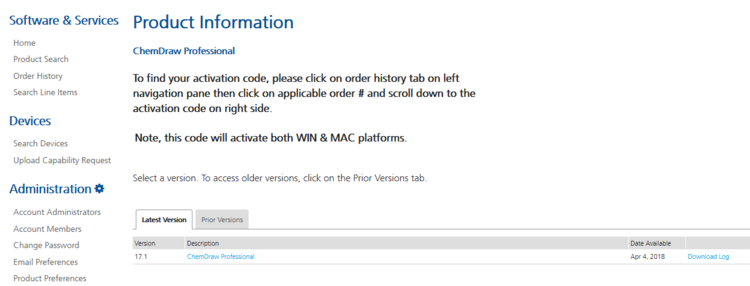
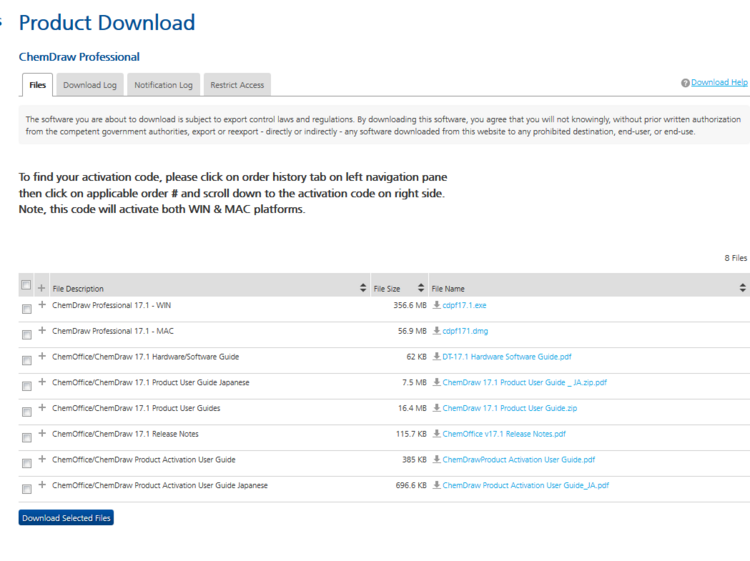
Select your package, download it and install it. When starting the installation programme, you may be asked for a serial number or an activation code. Please ignore this. After the message that an activation code is required when you start the programme for the first time, you can install the programme.
You can obtain this by clicking on List Entitlements in the overview in the left-hand menu and then entering the activation code in the line of the current Entitlement ID (currently ORD43224SL) and then copying/noting the corresponding code. It is also displayed again on the product download page.