
EXA for examiners
EXA for examiners
The new examination management software EXA will be available to the lecturers from 8 December at 8 am.
On this page (see left) you can download the instructions for examiners with detailed information.
We have summarised the most important instructions for use and FAQs for you below:
How do I get to the examination administration?

You can now access the new examination administration EXA via StudIP and the link embedded there. The old examination administration POS is managed exclusively by the Examinations Office. If you have any questions, please contact
How do I create online exams?
The way in which examinations are announced online will not change for the time being.
You can notify the Examinations Office of your examinations as usual via StudIP. The clerical staff will then create the examinations for you.
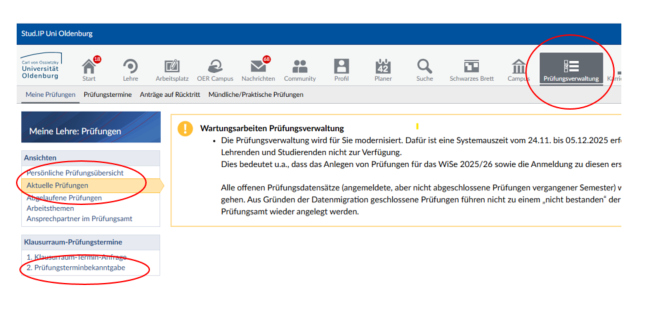
Path: StudIP>Examination administration>Current examinations>Announcement of examination dates
Edit my exams/record grades
You can access the exams you have created via "My exams"
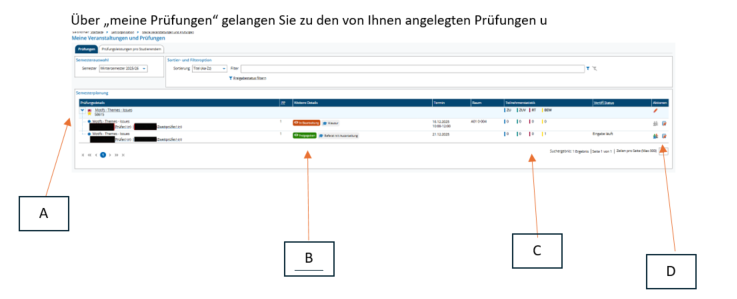
A: Here you can see the exam and the associated exam number as well as who has been created as the examiner
B: Status of your examination and the type of examination. Students can only register for the exam if it has been approved by the Examinations Office.
C: You will see examination statistics: ZU = admitted (registered) students; RT= withdrawals; BEW=graded students
D: You can use Actions to enter grades or load a list of participants
ATTENTION: EXA has a mouse-over function. You can move the mouse over the desired functions and you will be shown what they mean.
To enter grades, please click on the "Grades for...." icon under Actions. 
This will take you to the overview of the students registered for this exam and you can enter a grade under Assessment.
You can also upload grades here using the Excel export function.
Please refer to the manual for more information.
By saving, the grades are visible in the student's grade account.
Medicine still in POS - How do I get to the examination administration?
Access via Stud.IP had to be switched off for all lecturers and therefore also for lecturers on medicine degree programmes.
However, these are still managed via POS. As a lecturer, you have access to POS via the following link: POS access for medicine.