

Manage images and downloads
Manage images and downloads
All documents that are not web pages, i.e. images (photos/graphics) and download documents (e.g. PDF files), must be uploaded separately to TYPO3 so that they can be linked or placed within the web pages.
Urgent request: Always use the "File list" view to manage your media files, which can be found on the left in the TYPO3 main navigation under the heading FILE - this gives you the best possible control over where your files are stored:
TYPO3 link to the file list
This media management offers extensive options. Uploaded files can be labelled and indexed, which drastically increases the overview and findability. In addition, each file "knows" whether or where it is used within the web pages. This means that files that are actually still needed can no longer be deleted unintentionally.

To upload files to the web server
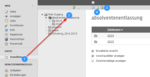
Fig. 1: First call up the file list (1) and change to the desired subdirectory where the file(s) are to be stored (2). If necessary, create another subdirectory for the new files (3) and then upload the desired files to this directory (4).
Tip:
If, for example, the image gallery for an event is to be made available, it is very useful to upload it to a separate subdirectory. In this way, all these images can be conveniently selected for use in the gallery at once later on, without the risk of confusion with other images.
Metadata is extracted automatically
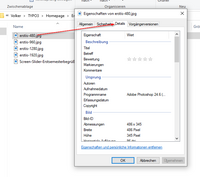
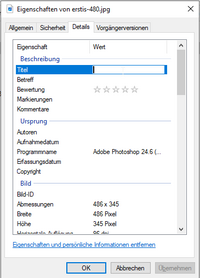
JPG photos and certain other file formats can contain so-called metadata, i.e. invisible additional information about the file. In the case of photo files, which often already contain technical information on exposure etc. from the outset, a title (description) and copyright information can also be added. This data then belongs permanently to the file, which is why this is highly recommended.
TYPO3 automatically extracts the metadata contained in the files! If, for example, a JPG photo is given a title and copyright information before uploading, these are immediately present in TYPO3 after uploading and are used as a title (for downloads) or as a caption. The copyright information is also analysed appropriately and can be displayed on the website for embedded images. If desired, this information can be subsequently customised in TYPO3.

Manage and edit files


Fig. 2: After uploading, click again on the directory with the new files in the tree structure view; they will then be displayed normally in the list of existing files. For a better overview, you can switch on the preview images for all files (1) and also activate the extended view to be offered further editing options (2). Finally, you can edit certain properties for each of the files (3) or replace the file with a newer version.
Fig. 3: The most important metadata of a file are the title (1), a description (2), keywords (3) and a caption (4). If you enter these values here, they will be used automatically as soon as you use this file as an image or download file on a website.
Check option: Where is a specific media file used?
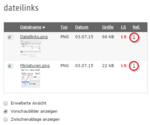

TYPO3 remembers where the files (images or download files) are used within the web pages. If you want to check whether or where a file is used, you can do this within the file list:
Fig. 4: Under "Ref." (References) shows whether or how often a file is used.
Fig. 5: If you click on the number displayed under "Ref.", an info window opens. From there, you can jump directly to the relevant content elements with the respective pencil symbol in order to make changes or remove the file there.
Video: Deletion strategies for files and websites

An online training course showed how files and web pages that are no longer needed can be removed from the website without causing unwanted side effects.
- Introduction to the topic (0'00")
- Important: Avoid legal problems / warnings due to unlicensed graphics! (0'43")
- Procedure for deleting files (images and download documents) (4'47")
- Check references for files to be deleted (5'15")
- Strategy for deleting files - delete directly or just sort away first? (10'34")
- Procedure for deactivating and deleting web pages (21'17")
- Checking references on pages - where are the pages linked from? (23'54")
- Using Google to find any links on pages (29'32")
- Excursus: linking "correctly" to other pages in the university (32'35")
Note: The video is only accessible to members of the university.