

File downloads
File downloads
Theoretically, download files (e.g. PDF documents, Excel files, etc.) can be linked as normal in text modules and thus offered for download. However, the method we recommend is to use the file links plugin, which is described in more detail here. The plugin automatically provides an appealing, tidy look when linking download files.

With this plugin, download files can be selected directly from the file list (see Manage images and downloads) and then automatically appear in a list with the appropriate file type icon.
First create a new content element of the type File links (see Fig. 1).
Common settings for all download files

Then select the settings for the download file(s) - see Fig. 2:
- Select one or more files to be offered for download. These can be files of any type. Ideally, you should have already uploaded these files to a suitable location in the file list (see Manage images and downloads).
- If there are several files, you can also have them sorted automatically.
- If required, you can specify a target window for the downloaded files.
- The file size of each download file can also be displayed. This is particularly relevant for larger files for smartphone users.
- If a description text has been added to a file in the file list, this can be displayed in addition to the document name.
- TYPO3 can display the individual download files in three ways: a) with their name only, b) with a file icon automatically selected based on the file type or c) with an automatically generated preview image
Setting options for the individual files
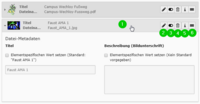
(see Fig. 3):
- Click on the grey bar for a file to open the other settings.
- You can use the pencil icon to directly edit the metadata (description etc.) of the file entered in the file list. This data is then saved directly with the file and is available wherever the file is used.
- You can use the button to hide a file from the list without having to remove it completely.
- The bin removes the file from this file links module.
- The i button shows further information about the file, e.g. its storage location. You can also see where the file is used.
- The shaded field serves as a handle, allowing you to manually re-sort the files selected for download by dragging them up or down while holding down the mouse button.
File links with preview image (thumbnail)
-
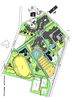 Campus Wechloy footpath The description text is displayed in addition to the title of the selected document. Additional information about the file can be provided here if required. If the box is ticked, you can enter your own text, otherwise the description text assigned to this file in the metadata in the file list is displayed.
 -


File links with file icon and file size
-
 Fist AMA 1 2 MB
 -
 Campus Wechloy footpath The description text is displayed in addition to the title of the selected document. Additional information about the file can be provided here if required. If the box is ticked, you can enter your own text, otherwise the description text assigned to this file in the metadata in the file list is displayed. 375 KB
Download files: Make longer description texts expandable
If more extensive description texts are to be displayed - such as abstracts of publications - these can initially be minimised and made expandable using a button. To do this, assign the CSS class collapsible info to the file links content element in the [Advanced] tab. Description texts that are longer than one line are then automatically provided with an expand button:
-
Campus Wechloy footpath The description text is displayed in addition to the title of the selected document. Additional information about the file can be provided here if required. If the box is ticked, you can enter your own text, otherwise the description text assigned to this file in the metadata in the file list is displayed. - And don't forget: In order for description texts to be displayed at all, the "Show description" switch (found at the bottom of the editing form for file links) must be activated!
-



Button look for file links
If required, file links can be given a button look. They then fit in visually with other link lists if these are also formatted as buttons. The button look gives a download link a little more contour and thus also improves usability on smartphones.
The button look is achieved in the same way that link lists can be displayed as buttons: In the [Appearance] tab of the element properties, set the Layout field to the value Link list as buttons.
-
Campus Wechloy footpath The description text is displayed in addition to the title of the selected document. Additional information about the file can be provided here if required. If the box is ticked, you can enter your own text, otherwise the description text assigned to this file in the metadata in the file list is displayed. 375 KB
-
Faust scene 2 MB
Map look for file links
-
 Ophthalmology: Everything in view Stefan Schrader, Sonja Mertsch
 -
 Cover story: The network is crucial Sebastian Lehnhoff
 -
 Cover story: Energy for all Jannika Mattes, Christian Busse, Thomas Klenke
 -
 Cover story: The energy calculator Christoph Böhringer