

Picture galleries and sliders
Picture galleries and sliders
TYPO3 offers various options for presenting images, e.g. as a gallery or slideshow. Sometimes this should also be done in combination with text and/or links, and finally the text itself can also take centre stage. Depending on the intended application, different approaches are available.
You can copy the elements shown in TYPO3 to use them on your own pages:
TYPO3 link to sample elements
Video of the training on the use of galleries and sliders

An online training course showed how graphics and other content can be presented using galleries, banners and sliders.
- Introduction to the topic (0'00")
- (Enlargeable) images using "Text & Media" (2'31")
- Excursus: New, centrally provided images of the university for general use (5'35")
- Excursus: Displaying copyright information (8'28")
- A large image and thumbnails/buttons for (automatic) switching: UOL image gallery (15'48")
- Image banner with text panel in front and automatic banner change: the claim slider (31'37")
- New: Scroll through content elements: Content slider (42'55")
Note: The video can only be viewed by members of the university.
Video: Claimslider - Improved configuration options

An online training course showed how to work correctly with the settings for height and width in the content element "Claimslider" and how to adjust the display of the slider on different screen sizes.
- Introduction to the topic (0'00")
Note: The video is only available to members of the university.
Picture gallery with [Text & Media]



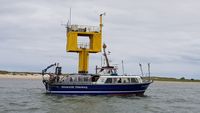
The [Text & Media] content element is easy to use and sufficient for many cases. If you create one of these elements, you can insert images to be displayed in the "Media" tab, which ideally have already been uploaded in the media management, and arrange them in rows or columns. The individual images can be enlarged by clicking on them and then clicked through one after the other.
Slideshow with [UOL Slideshow]
-
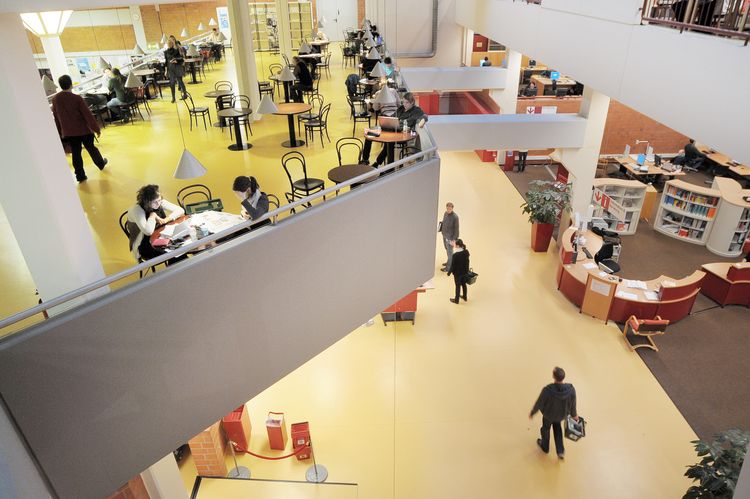
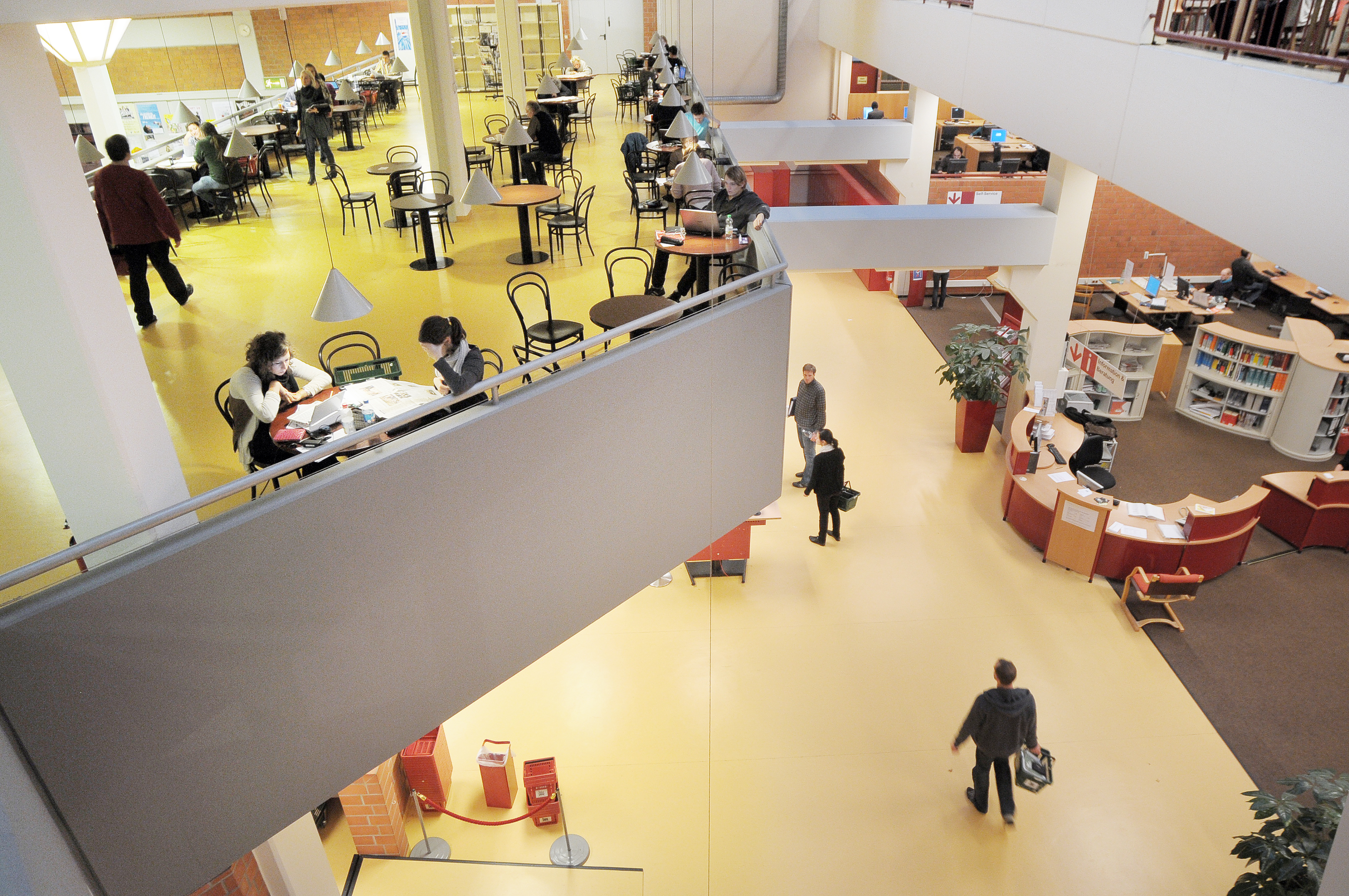
Library with CaféBar University of Oldenburg / Daniel Schmidt -
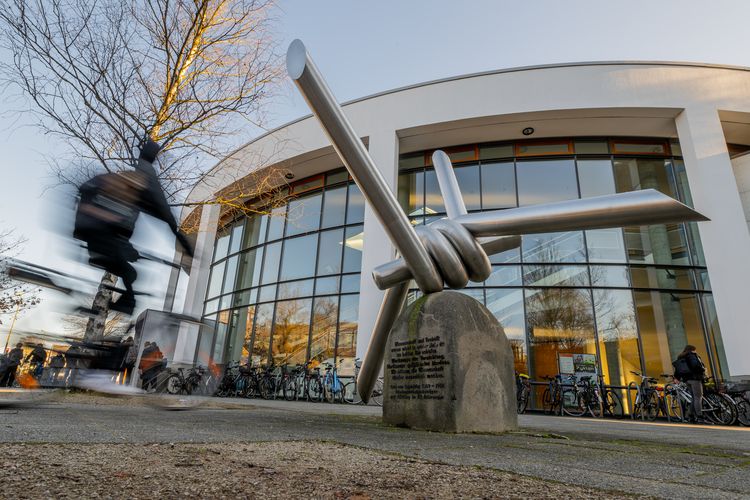
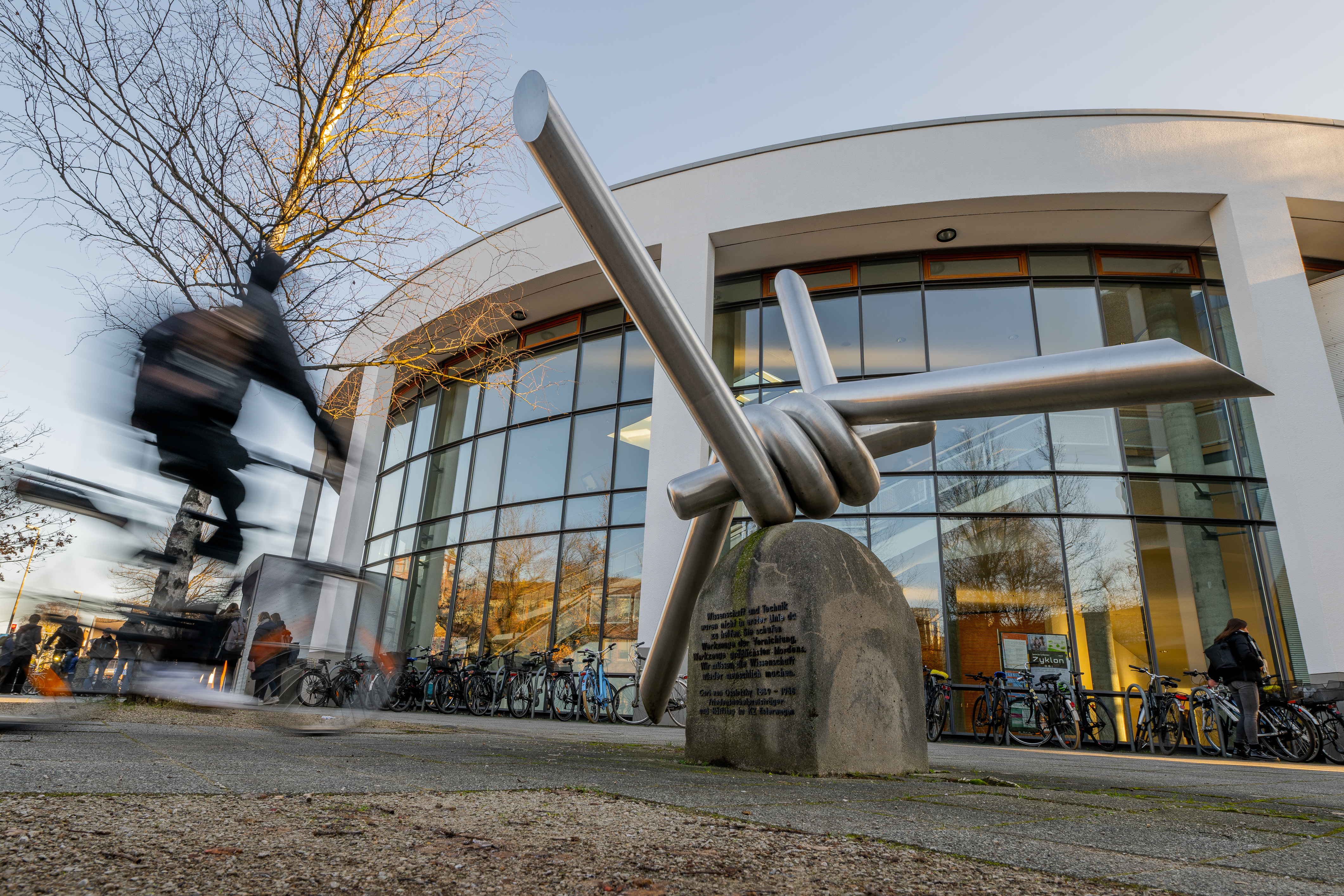
Carl von Ossietzky Memorial University of Oldenburg / Daniel Schmidt -
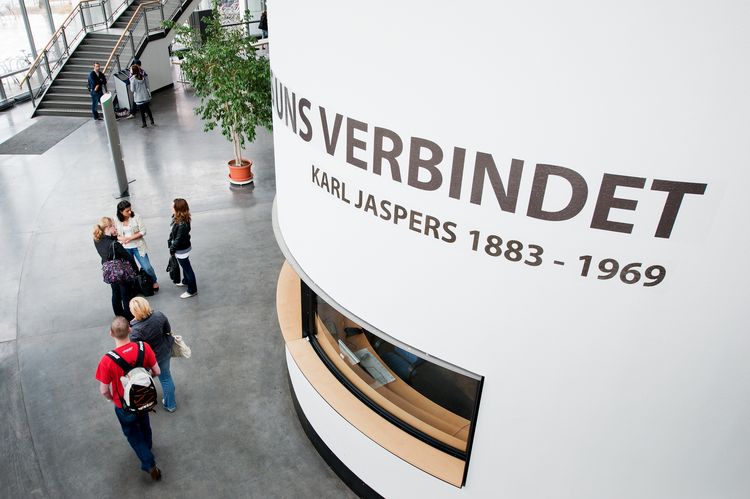
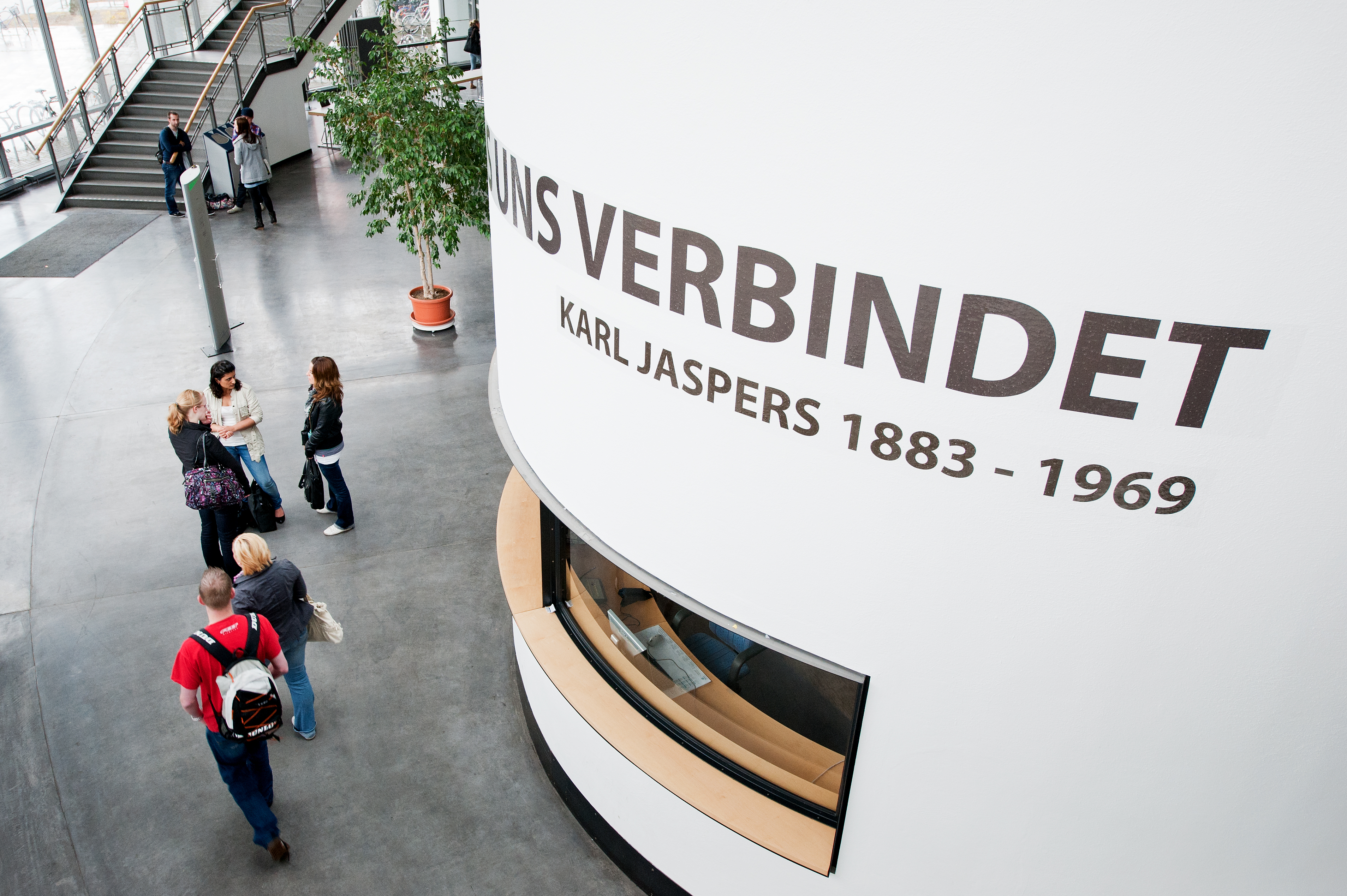
Foyer Lecture Centre A14 University of Oldenburg / Daniel Schmidt -
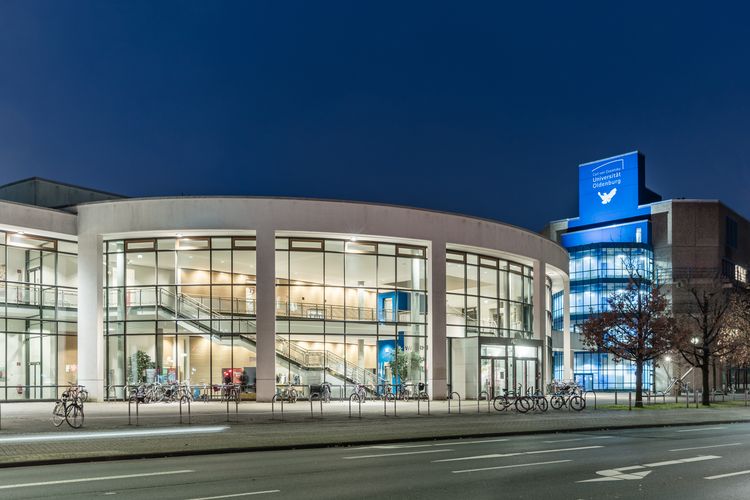
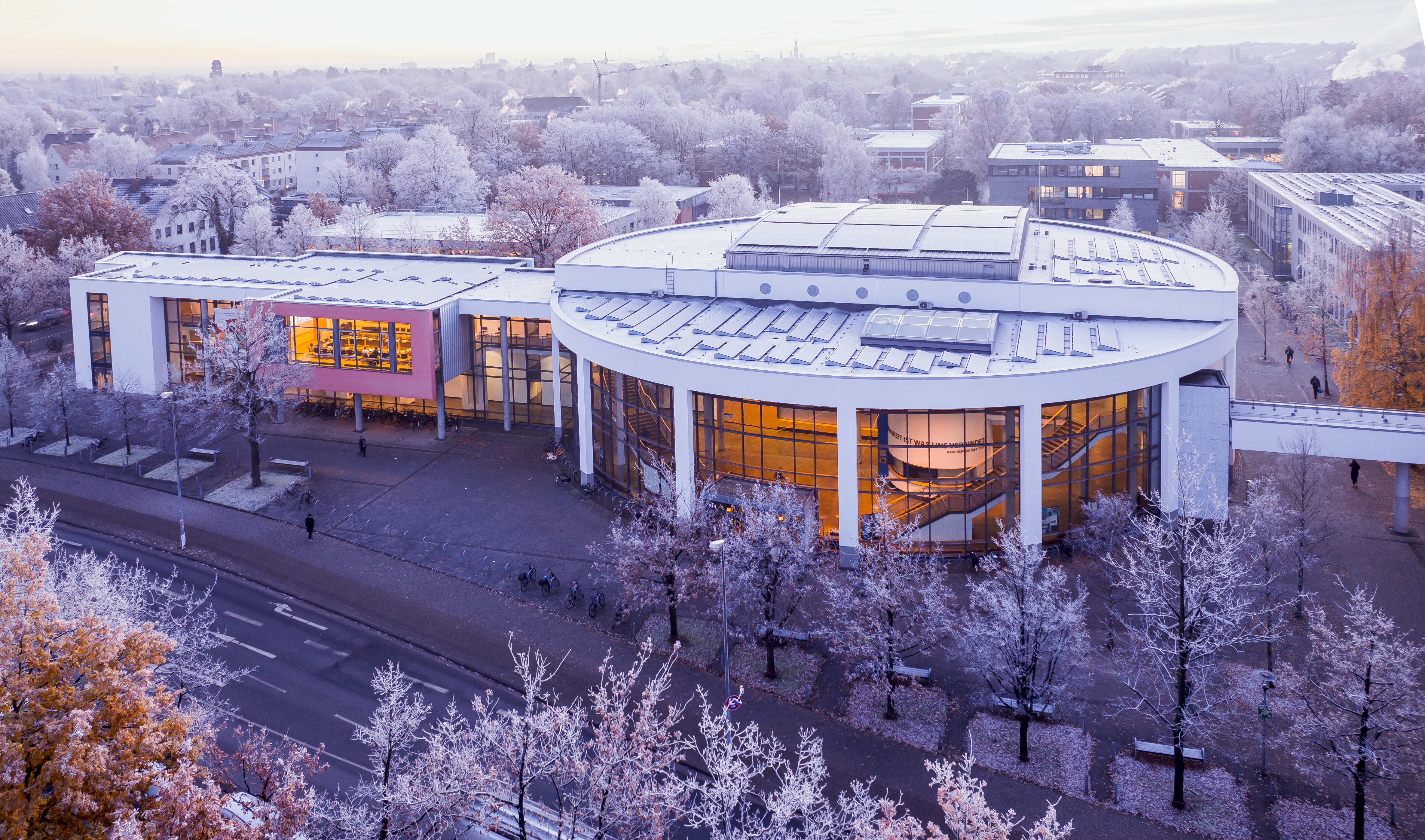
Lecture theatre centre at night University of Oldenburg / Martin Remmers -
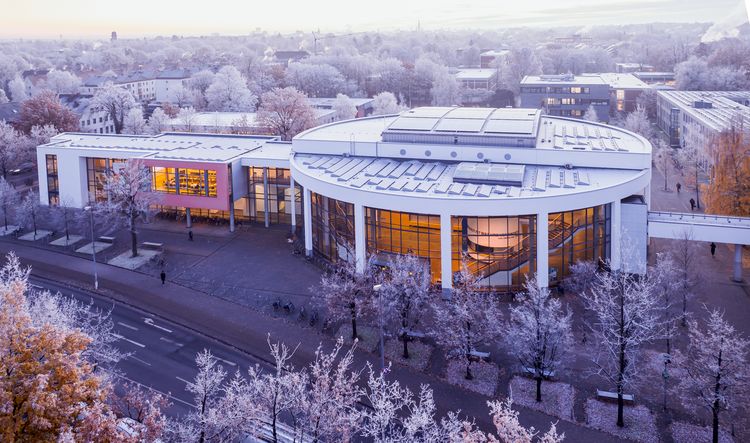
Lecture theatre centre University of Oldenburg / Daniel Schmidt -
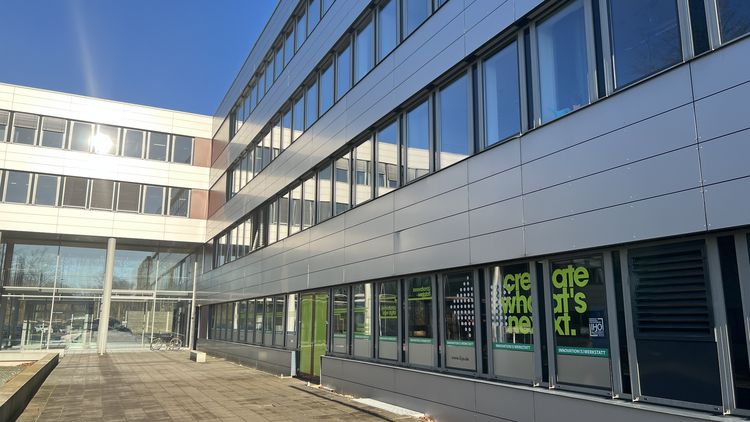
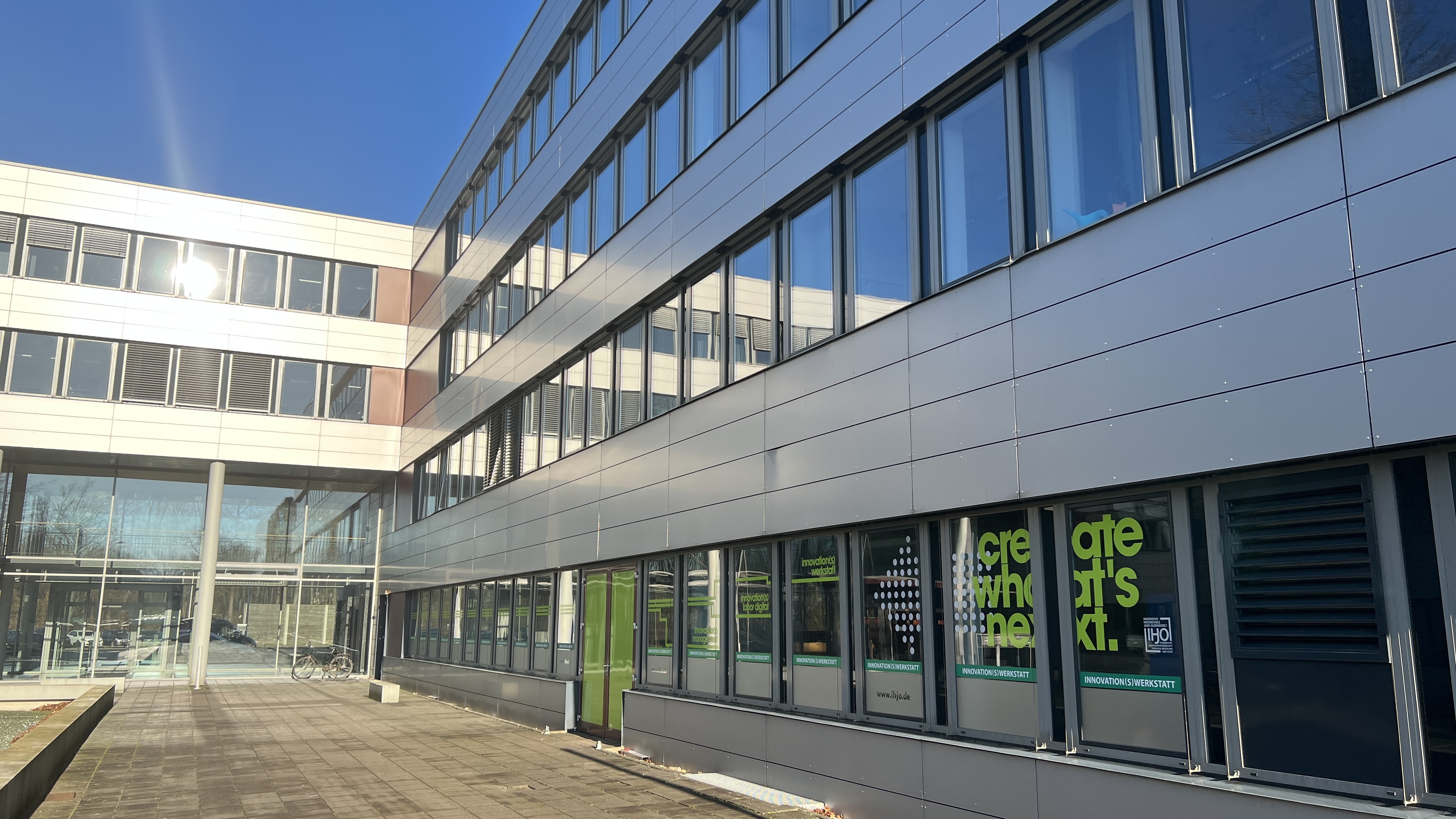
Innovation Campus University of Oldenburg / Nele Claus -
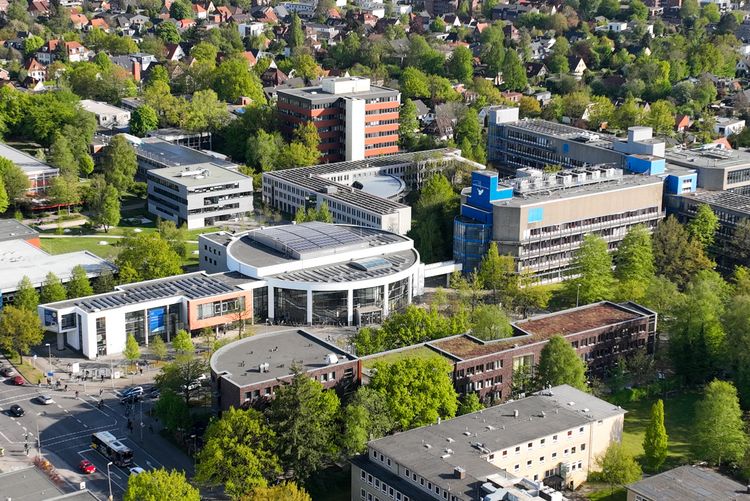
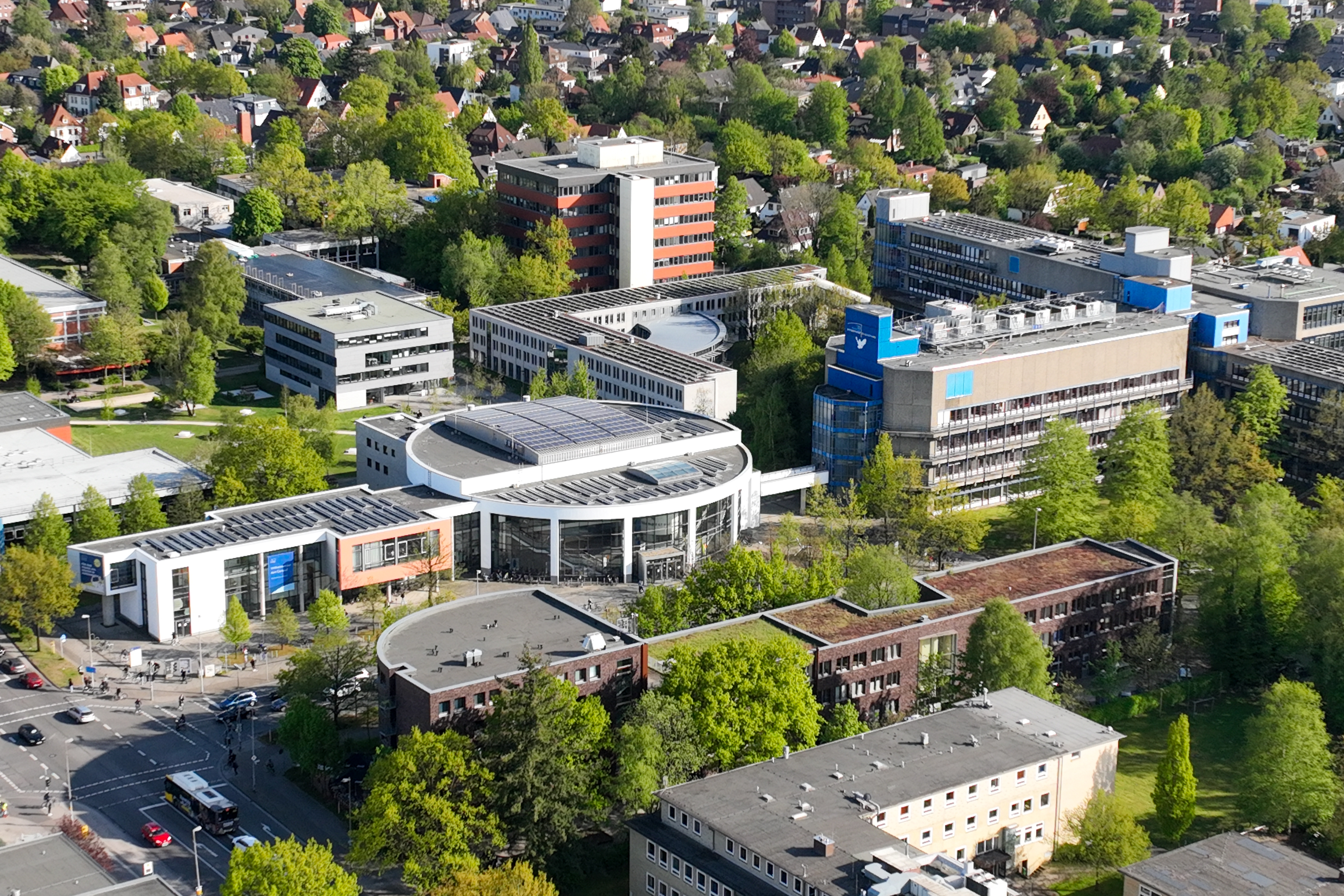
Campus with lecture theatre centre, A1-A6 and A12 University of Oldenburg / Daniel Clören -
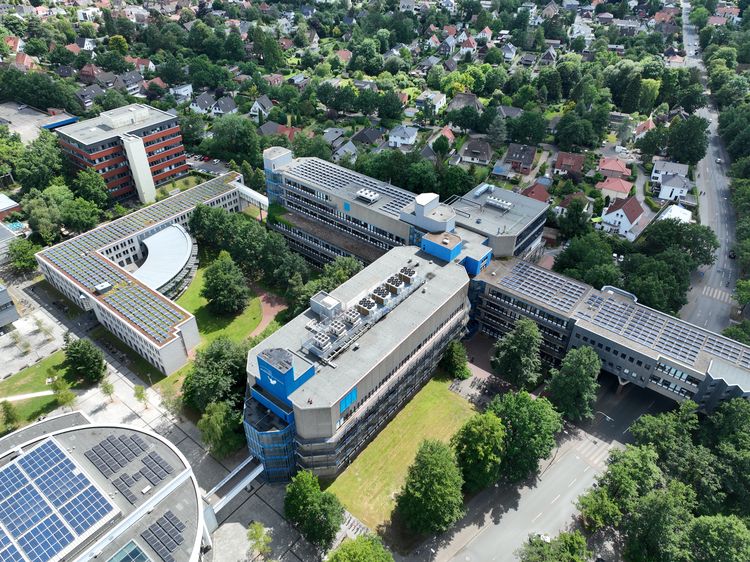
Photovoltaic systems University of Oldenburg / Daniel Clören -
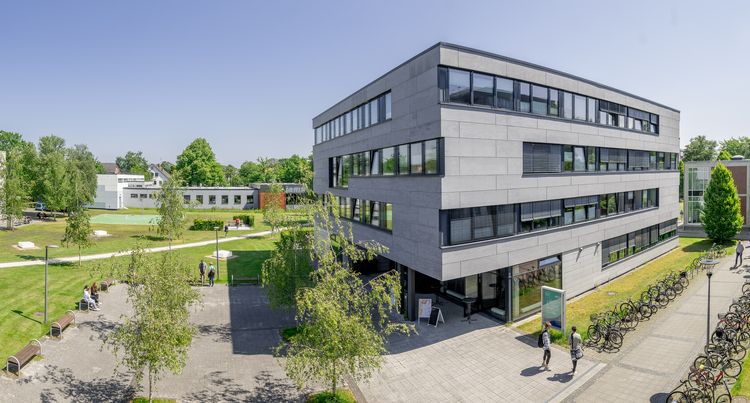
Student Service Centre (SSC) University of Oldenburg / Daniel Schmidt

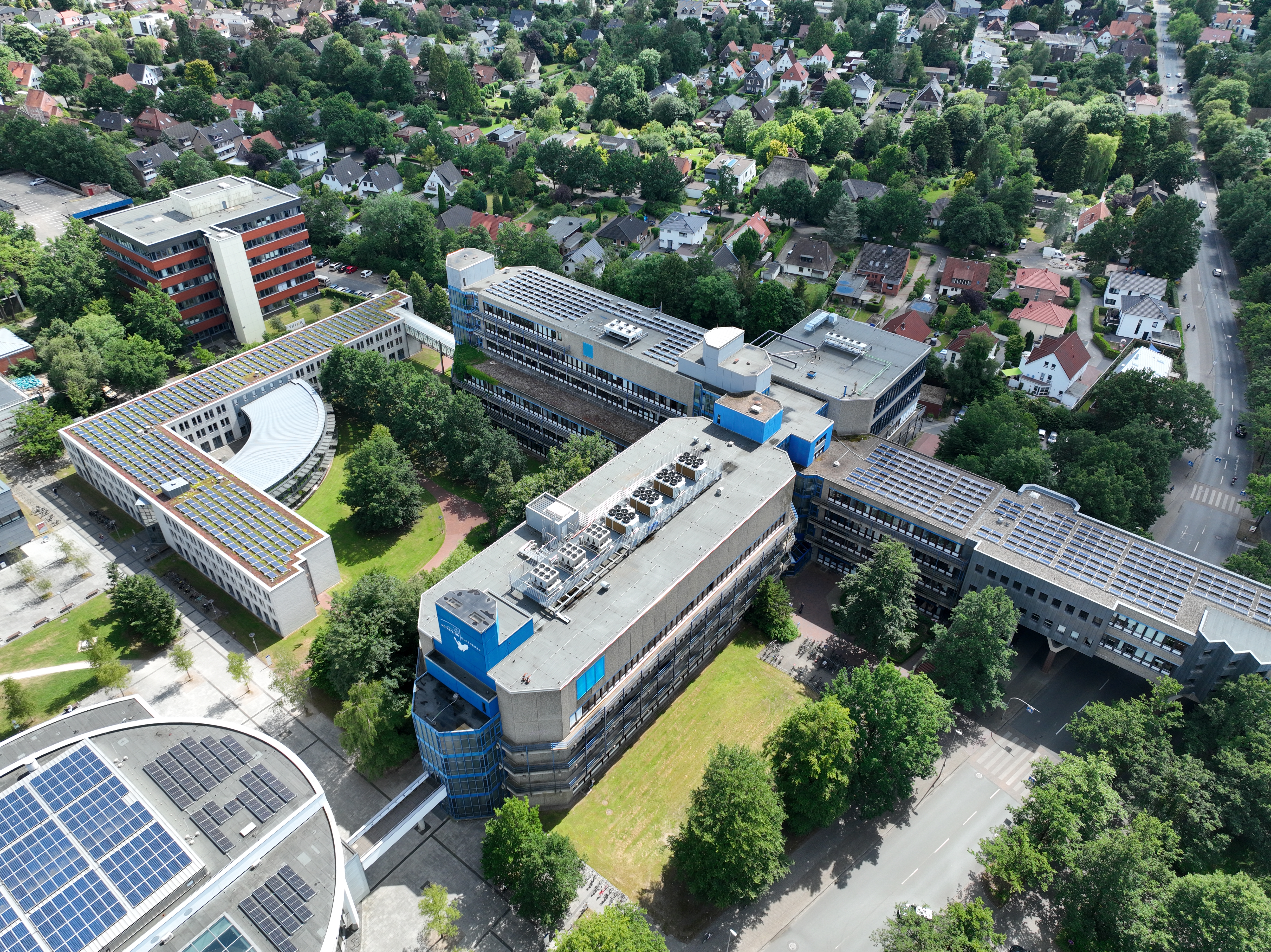
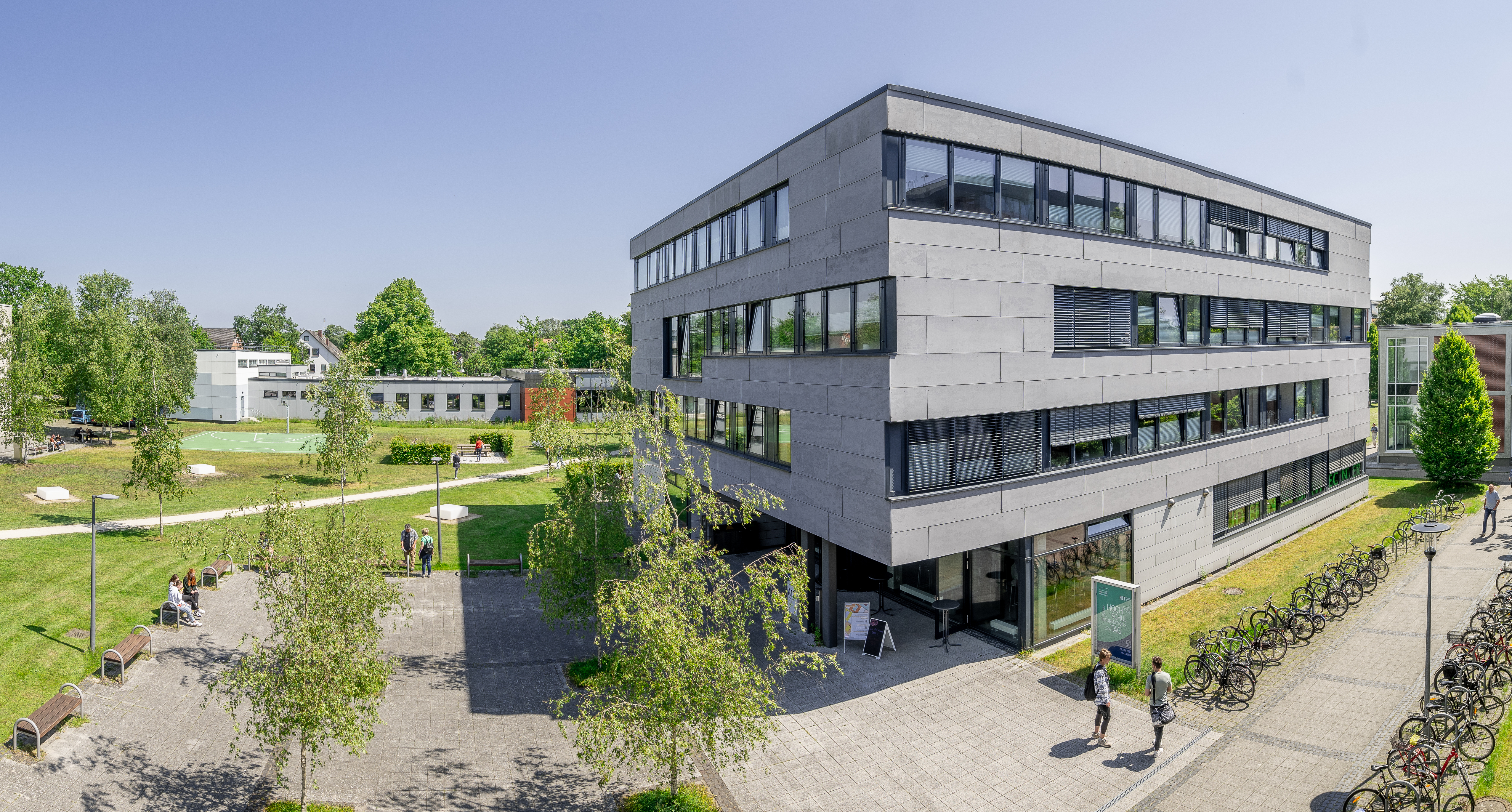
Slideshow with [UOL Slideshow] - with dots as navigation elements
-
Library with CaféBar University of Oldenburg / Daniel Schmidt -
Carl von Ossietzky Memorial University of Oldenburg / Daniel Schmidt -
Foyer Lecture Centre A14 University of Oldenburg / Daniel Schmidt -
Lecture theatre centre at night University of Oldenburg / Martin Remmers -
Lecture theatre centre University of Oldenburg / Daniel Schmidt -
Innovation Campus University of Oldenburg / Nele Claus -
Campus with lecture theatre centre, A1-A6 and A12 University of Oldenburg / Daniel Clören -
Photovoltaic systems University of Oldenburg / Daniel Clören -
Student Service Centre (SSC) University of Oldenburg / Daniel Schmidt
The [UOL slideshow] element displays a large image and either thumbnails or navigation points for navigation. An automatic image change (slide show) can also be activated.
Banner change with [claim slider]
The [Claim-Slider] element enables an automatic banner change including a text box and, if necessary, a link to further information. It is particularly suitable as the first element within websites, which presents certain topics in a striking way.
Content slider - several contents scrollable
If entire content elements are to be "scrolled" instead of pure banner graphics, the content slider helps:
- Create a container element of type [1-column]
- Assign the CSS class
owl-sliderto the element in the [Notes] tab- If the scroll arrows shown at the top right are not desired, they can be hidden using the additional CSS class
without-arrows(i.e.owl-slider without-arrows).
- If the scroll arrows shown at the top right are not desired, they can be hidden using the additional CSS class
- Create various content elements within the grid element. These can then be scrolled through using the navigation buttons.
In the following example, the background frame has also been assigned light grey in the [Appearance] tab.
Content slider: Multiple elements can be scrolled
Element 1
On 5 December 2023 - exactly 50 years after the State Parliament of Lower Saxony officially founded the University of Oldenburg - the official starting signal for our anniversary year 2024 will be given with the "AUFTAKT" event. We are very much looking forward to celebrating this anniversary together with all of you: with our employees and students, the people from Oldenburg and the region, with national and international guests, our friends, alumni, supporters and all other people who feel connected to us.
Element 2

On 5 December 2023 - exactly 50 years after the State Parliament of Lower Saxony officially founded the University of Oldenburg - the official starting signal for our anniversary year 2024 will be given with the "AUFTAKT" event. We are very much looking forward to celebrating this anniversary together with all of you: with our employees and students, the people from Oldenburg and the region, with national and international guests, our friends, alumni, supporters and all other people who feel connected to us.
Element 3
On 5 December 2023 - exactly 50 years after the State Parliament of Lower Saxony officially founded the University of Oldenburg - the official starting signal for our anniversary year 2024 will be given with the "AUFTAKT" event. We are very much looking forward to celebrating this anniversary together with all of you: with our employees and students, the people from Oldenburg and the region, with national and international guests, our friends, alumni, supporters and all other people who feel connected to us.
By assigning an additional CSS class half or third or quarter, a halved, third or quarter display can be achieved. In the following example, half (two terms with spaces in between) is entered in the CSS field owl-slider, which achieves a two-column display.
In addition, background colours have been assigned to all content elements contained, while the surrounding grid element, in contrast to the previous example, has no background colour.
The graphics have also been reduced in size due to the limited space available.
Content slider: Several elements scrollable (with half-splitting)
Element 1
On 5 December 2023 - exactly 50 years after the State Parliament of Lower Saxony officially founded the University of Oldenburg - the official starting signal for our anniversary year 2024 will be given with the "AUFTAKT" event. We are very much looking forward to celebrating this anniversary together with all of you: with our employees and students, the people from Oldenburg and the region, with national and international guests, our friends, alumni, supporters and all other people who feel connected to us.
Element 2

On 5 December 2023 - exactly 50 years after the State Parliament of Lower Saxony officially founded the University of Oldenburg - the official starting signal for our anniversary year 2024 will be given with the "AUFTAKT" event. We are very much looking forward to celebrating this anniversary together with all of you: with our employees and students, the people from Oldenburg and the region, with national and international guests, our friends, alumni, supporters and all other people who feel connected to us.
Element 3
On 5 December 2023 - exactly 50 years after the State Parliament of Lower Saxony officially founded the University of Oldenburg - the official starting signal for our anniversary year 2024 will be given with the "AUFTAKT" event. We are very much looking forward to celebrating this anniversary together with all of you: with our employees and students, the people from Oldenburg and the region, with national and international guests, our friends, alumni, supporters and all other people who feel connected to us.