

Multilingual websites
Multilingual websites
A website can also exist in one or more other languages in addition to German. Additional language versions of the site can be created based on the German version.
Fully automated English translation
The university has received a fully automated DeepL translation of all its web pages into English. For any page that does not already exist in English, a translated version is generated in the background. This is also updated automatically whenever changes are made to the German text.
Questions and answers on this topic:
What work do I have to do as a TYPO3 editor?
Basically: none. Everything happens automatically.
But of course, DeepL may not translate everything perfectly. This is generally accepted in favour of completeness, but sometimes you do want to influence it - see the following questions and answers.
What about pages for which there is already an English version?
If the translation was created in "connected mode", i.e. if there is a 1:1 relationship between each English element and the corresponding German element, the automatic system recognises this and does not touch it.
Only content for which there is not yet a translation is translated. The automatic system virtually fills in the translation gaps.
But: Only translations in "connected mode" are recognised as such by the automatic system! However, this is also the absolutely recommended method, as it is the only way to obtain translations that are consistent in terms of content. So if you have been maintaining the English version of a page completely independently of the German version, we recommend converting the page:
What happens to pages that are freely translated (not 1:1)?
As already described in the previous entry, we ensure that the switch is automatically set in the "Language" tab for freely translated pages, which excludes the page from the automatic translation.
And what happens if I then deactivate this switch manually?
Then Campus Lingo automatically translates the entire page and adds the generated content below the manually generated English content.
Can I influence whether pages are translated automatically or not?
By translating a page using the conventional DeepL method, you can ensure that all elements are already translated. In this case, the automatic system does nothing.
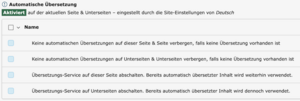
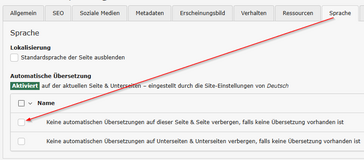
You can also exclude certain individual pages or their subpages from the automatic translation. However, this should remain the exception, as the university always strives for a complete translation. The corresponding switches can be found in the page properties in the [Language] tab.
Nevertheless, deactivating the automatic translation can be useful in certain cases, for example if you are creating internal pages for a very specific non-public target group for which you know that a translation is definitely not required.
The corresponding settings can be made in the [Language] tab in the page properties.
How do I ensure that certain elements within the page are not translated?
There are indeed plausible reasons for not wanting to translate an element, e.g. if it is a list of publications that should of course always be named with their original title.
In this case, open the German content element, switch to the [Languages] tab and change the language from "German" to "All languages". The German element is then also displayed identically on the English page.
How do I correct incorrectly translated terms?
If certain terms are always translated differently by DeepL than usual at the UOL, a glossary entry can be created for this so that DeepL "knows" how the term should be translated in future.
In this case, please report the term and the desired translation using this form:
What do I do with terms that should generally not be translated?
Certain proper names or similar may not be recognised as such by DeepL. For example, "Prof Dr Chicken " should of course not be translated as "Prof Dr Chicken".
In such cases, the terms can be protected by enclosing them in triple tilde characters: 
The tilde characters prevent automatic translation and of course remain invisible in the external presentation.
What can I do if the wording of a translation is generally unsuitable?
This hopefully only happens rarely because the translation quality of DeepL is now very good.
In the event of a problem, you can always translate a content element using the conventional method, i.e. you can create the English version of the page and then only translate the content element in question using DeepL. You can then edit it manually as usual.
Because a translation already exists, this element is simply skipped by the automatic system, while all other elements continue to be translated automatically.
What can I do if the page title and/or the http address of the translation are not good?
You can also create the English page version manually, but otherwise leave it blank. This allows you to configure the English page properties yourself, but still leave the translation of the content to DeepL.
How does the automatic system handle graphics and download files?
Such files are not automatically translated.
If you have images that contain text or PDF documents with text, it is up to you to upload additional English-language versions.
Why is Stud.IP-based information not automatically translated?
The Stud.IP data is actually located outside our TYPO3 system. This is why it is integrated from there and therefore not included in the automatic translation.
However, you can enter an additional English version of the data in Stud.IP itself! This is described on the contact data page.
How do I convert a page with an existing English version so that it is automatically translated in future?
Use these steps to convert a page with an existing English translation into an automatically translated one:
- If the English website was previously a free translation, the switch for deactivating the automatic translation is most likely set in the [Language] tab of the page properties. This must then be removed.
- It is also important that you delete the existing English content elements (or at least deactivate them all). The automatic translation function translates all content anew, and of course there should be no duplication with the old content.
Note:
An alternative to the procedure in point 2 is to simply deactivate or delete the existing English page version in the [Language comparison] view. Even then, the automatic translation will recognise the absence of the English page and regenerate it including the content. However, this has a disadvantage: the new translation may have a different page title and a different http address than the previous English page. This method is therefore not recommended.
Why do automatically generated menus appear incomplete in the English translation?
In general, the automatic transmission fills the gaps automatically. However, this means that the automatic function must actually be active.
On websites with translations in "free mode", however, the automatic function is not active. On such pages, the menus are therefore only generated on the basis of the pages that actually exist in English.
Possible solution 1: Convert the overview page into a machine-translated page - the automatic translation will then also take care of the menus. To do this, uncheck the box in the [Language] tab of the (German) page properties that previously deactivated the automatic translation.
Possible solution 2: If the "free translation" is to be retained at all costs, a real English page version can also be generated for all subpages, as this means that TYPO3 also generates the menu completely on the English page. The English page versions of the subpages only need to be generated, but can otherwise be left empty, leaving their content to the automatic translation.
Why does the automatic translation of hyperlinks to other UOL websites not refer to the English version of the target page?
In general, the automatic translation function can also link to English websites, but it is important that the link is created in the "right" way on the German page.
Special case: Link to news articles
There is a special case when it is not enough just to link to the ID of the page, but the news article to be displayed should also be selected. Unfortunately, there is only a rather cryptic solution here. The [External URL] tab should also be used as the link target, but more must be added after the page ID:
82&tx_news_pi1[news]=12524&tx_news_pi1[controller]=News&tx_news_pi1[action]=detail
The page ID here is 82 and 12524 is the ID of the news article to be displayed. Both values must be determined beforehand, but fortunately both are already included in the short URL of the news article page in the page footer:
- The page ID is the number after the "p" (p = page).
- The news ID is the number after the "n" (n = news).
Example: https://uol.de/p82n12524 = page ID 82 and news ID 12524.
How do I convert a website that was originally translated in ‘free mode’ into a website in ‘linked mode’ after the fact?
For the automatic translation feature to work effectively, existing English elements must be linked to a corresponding German source element. Only then will that German element not be translated again.
If a web page already contains free-standing English elements, the automatic translation feature is therefore disabled by default for that page, to prevent such quasi-duplicates from arising. However, it is now possible to a) use your own intended English elements and b) simultaneously enable the automatic translation feature for the remaining elements. To do this, each of the previously free-standing English elements must be assigned to a corresponding German source element:
- In TYPO3, go to the Web→Page view and then to the [Language Comparison]; to do this, select ‘All Languages’ from the language menu. At the top of the ‘English’ column, the blue [Free Mode] marker should initially appear.
- First, identify the German element that is to become the source element for an English element.
- Check whether this element has a clearly identifiable heading. If it does not have a heading, open it for editing, fill in the heading field appropriately and select ‘hidden’ below it. The element can now be identified by its heading.
- Open the English element for editing and switch to the [Language] tab. There, in the top right-hand corner, you can now make a selection of the German source text by its heading.
- Clicking [Save and Close] will create the 1:1 link. The English element will then display the corresponding footer information in the internal page overview.
- Repeat these steps for all available English elements.
- If [Linked Mode] now appears at the top of the English column, the mapping is complete. You can now open the page properties for the German version of the page and, in the [Language] tab, remove the tick that previously deactivated automatic translation.


Video: Introduction of the DeepL automatic translation system
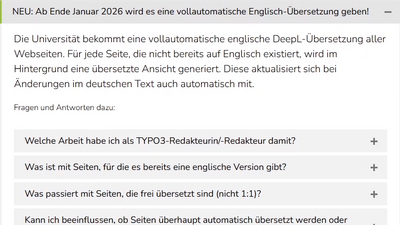
An online training session showed how all UOL websites will be automatically translated into English from the end of January 2026 and what options are available for individual handling of translation behaviour.
- Introduction to the topic (0'00")
Note: The video is only accessible to members of the university.

Recommended working method
The automatic translation system introduced in January 2026 (see above) eliminates many of the steps previously required to provide English translations, as an English version of every German-language website is also automatically published, translated via DeepL.
![View [Language comparison]](/fileadmin/_processed/6/b/csm_sprachenvergleich_f0355430ac.png)
This simple method is now recommended:
- In TYPO3, call up the German page to be translated in the Web→Page view.
- Switch to the [Language comparison] view (see image).
- Use the [Translate with DeepL] button to create an English version of the page and ensure that the fields Title, URL segment and, if necessary, Navigation title and Breadcrumb title are translated appropriately. Then save and close.
Done, the rest is now done automatically. Any changes made to the German page are now automatically made to the English page.
Further options for the English translation
- Optional: Edit English page properties
The English language can be selected below the [Language comparison] selection, so that a "German" column and an "English" column appear next to each other. The English page properties can be subsequently edited again under the "English" heading. - Optional: Manually maintain the translation of individual content elements
If you feel that the automatic translation of a particular content element is inadequate, you can decide to translate the element explicitly and edit it manually. To do this, click on the speech bubble icon below the "English" heading, select the DeepL translation, click next and then deactivate all displayed content elements except for the one to be translated manually. The English translation is then generated from this (i.e. only from this). - Optional: Other special requirements are explained in the following sections.
Video of the training course on multilingualism

The method for creating and maintaining translated websites was presented and demonstrated in an online training course on multilingualism. You can watch the video here.
Note: The video is only available to members of the university.
Create language version (translation) of a page
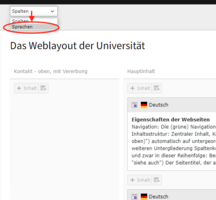
If you want to add a language version (e.g. English) to a website, you can do this in the Web->Page view. To do this, call up the corresponding page under Web->Page and switch the selection menu at the top of the workspace to "Languages".
Any existing language versions are now displayed, a new language version can be created very easily and then appears as a (still empty) language column in the language view.
- Switch to the language view within Web→Page.
- Create an English language version of the page.
- Assign an English title to the English language version. The German content of the respective field is displayed below for orientation.


Translate German-language content
Updated procedure
The following information has been created for a largely manual method of providing English websites. There is now an automatic translation function that automatically adds an English version of every German-language website translated with DeepL.
Individual content elements of the website can then be explicitly translated into English and edited there only if specifically required. If you do this, however, you will always have to manually update the English element when making changes to the German element.
If a (e.g. English) language version of a website has been created, this is like a new website that is initially still empty. The second step is to fill this translation with content. To do this, it makes sense to transfer the content from the German page to the translation. In this way, the entire content structure of the page can be transferred to the translation with just a few clicks.
Variants: Tight or loose translation of the website
TYPO3 distinguishes between two types of multilingualism:
- The English language version should be a close translation, in which the content elements of the English page version correspond 1:1 to the German page version and should also remain permanently in this close context.
or: - The English language versionshould only be a loose copy of the German language version, but in which there can be different content elements, here ultimately each language version can be edited independently of the other - almost as if they were different pages.
The close translation (1.) is therefore intentionally much stricter than the loose copy and has this effect:
- In the English language version, content elements cannot be moved and no new content elements can be created. This is only possible from the corresponding German element.
- New content elements can only be created as a copy from an existing content element in the German language version.
- If a German element is deactivated, this also automatically affects the corresponding English element. If an English element is deactivated, this only affects this English element.
Automatic translation into English with DeepL
The translation of content from German into English is now supported by the machine translation service DeepL!
The linguistic quality of the translation controlled by artificial intelligence (AI) is very high and speeds up the translation process considerably. If the "Translate (DeepL)" option is selected when translating, all existing content is not just transferred to the English page, but automatically translated into English. Existing text formatting is retained!
Please note:
DeepL translations are always close translations ("Translate")i.e. each English element is assigned to a German original element.
This also means that DeepL is only offered when translating new content elements for websites that have been translated into English as a close translation. This means that DeepL cannot be selected for mixed or loose translations!
Video of the training course on DeepL-supported translation of news and appointments

In an online training course on the topic of DeepL translation of messages and calendar entries, the special procedure required here was demonstrated. As the messages and appointments are usually located in a separate page (system folder), they are accessed via the list view.
- Start (0'00")
Note: The video is only accessible to members of the university.
Very important
- The quality of the translation may be very high, but it cannot be regarded as error-free. It also does not know our terminology, so it does not always know how certain terms are used in our country. It is therefore essential to proofread the translations generated by DeepL! By using DeepL, you remain responsible for the content. So never blindly trust the machine translation.
- At the UOL we have a special terminology, i.e. fixed translations for certain academic terms or also of institution names. Check the terminology to ensure that the correct technical terms are used:
German-English terminology - The International Office has a Translation Coordination Office. This can help to ensure that the translations are correct and presentable.
Translation coordination
Edit existing translations of a website
As soon as a language version has been created for a website, it can be selected for editing in the Web->Page view, for which the column view is again recommended. You can also switch back to the German language at the same point.

Edit title and other page properties of the language version
If a foreign language is selected in the column view, a globe icon appears in the toolbar below, which can be used to edit the page properties for this language.

Only work with foreign languages (no German page version)
In exceptional cases, it may be desirable to offer a website in English only. The default language German is then hidden. In the German-language online view, the page is thus virtually non-existent, and it is not possible to switch to it in the language change menu of the website.
This method should only be used in justified exceptional cases where there is definitely no need for a German version. In this case, however, at least the start page of the respective area should also be offered in German with a note that it is possible to switch to the English page version in order to view further content.
The language change pattern element can also be inserted on subordinate pages.
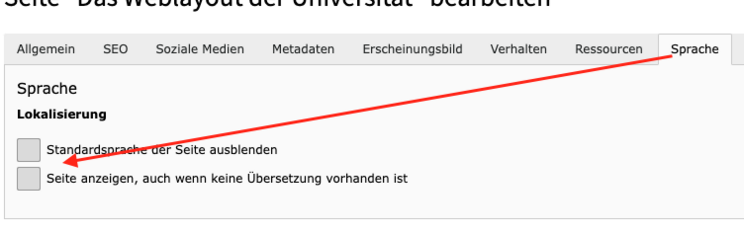
However, if the subpages are not to be visible at all in the German-language view, the"Hide default page language" checkbox must be ticked individually in the page properties for each page that is only to appear in English:
Translation overview: Check for which pages a translation exists
TYPO3 provides an overview of the existing language versions of the pages. This can be used to check which pages exist in which language.
The so-called translation overview is one of the info functions. To do this, first click on [Info] in the left-hand TYPO3 column, then on the page to be analysed in the page tree column and finally on [Translation overview] in the main window.
You can select how many levels of the overview should be generated (1). For most users, it should also make sense to only select [English] as the foreign language (2), provided that only this foreign language is used.

Backend error: "Inconsistent content ... found"?
This error message may occur with the language version of a page (usually "English"). What does this mean?
When translating and transferring a page, you are asked whether a close translation ("Translate") with direct language reference of each English element to a German original element or a loose translation ("Copy") without direct language references should be created. According to this selection, TYPO3 does not allow new content elements to be created manually in the English translation for close translations, as these can only ever be created as translations of existing German elements in order to ensure the language reference. Both approaches are justified, but a clear decision must be made in favour of one or the other.
A linguistic inconsistency occurs when the translated (e.g. English) version of a website contains elements with a 1:1 language reference to a German-language element (close translation) and at the same time elements without such a direct language reference (loose translation). The elements without a language reference are highlighted in red, but the trigger for the problem can also be a single element with a language reference.
This error message is triggered, for example, if one of the English elements in a loose translation without a language reference is subsequently given a language reference by creating a link to a German element in the [Language] tab. This results in a logically absurd mixture of close and loose translation. This is not shown externally as a visible error, but internally the language reference should still be either defined or removed for all English elements. As soon as this uniformity is established, the red marking of the elements disappears again
Ensure correct language assignment!
The default language in our TYPO3 CMS is German, but additional language versions (English, etc.) can be created for each page.
If you want to provide English-language content, please use English page versions. Do not place English text on a website that is considered to be in German, as this creates an unsightly confusion of the languages used.