
Functional account
Functional account
What a functional account is
Unlike a user account, a function account is linked to a function or role instead of a person. This results in additional possibilities of use, but there are also restrictions associated with it:
- E-mails that arrive on a function account can be forwarded from there to several personal e-mail accounts. In this way, if one person is absent on holiday, all e-mails to the function can be forwarded to another person.
- It is possible to work with several people on the function account.
- Function accounts do not have the status of lecturer in Stud.IP. Function accounts can therefore not create and moderate mailing lists.
- Function accounts are not transferred to the DFN-AAI infrastructure and cannot participate in EDUROAM.
- Function accounts cannot download personal software and have no access to the library's personal services.
- If WLAN is to be used with function accounts on the university campus, this must be explicitly mentioned and justified in the application.
The account name of a function account is used as the e-mail address for this account: <function account name>@uol.de. In addition, this name is also used to set up a web server directory, the contents of which can be found at www.<function account name>.uni-oldenburg.de and an FTP directory, which can be used at upload.uni-oldenburg.de/<function account name>. We therefore advise you to choose a name for your function account that is as meaningful as possible.
Applying for a functional account
A functional account is set up via an automatic workflow. Only employees of the university can apply for functional accounts. As the application for functional accounts is based on the dual control principle, another person must be selected as the approver for the account. In addition, it is also determined who is to be responsible for the functional account.
The person responsible has the right to request changes to the account or have it deleted and is used as the email contact for important information regarding the account. If the responsible person leaves the university, another employed person must take over responsibility for the account, otherwise the functional account will be blocked.
Requesting a functional account
For change requests (adding or withdrawing authorisations for mailbox access) for a functional account, please use the form 'Authorisation for the mailbox of a functional account' (only in German), which can be accessed in the IT service portal under 'My workplace'. Please send any other enquiries about the functional account by email:
Validity of function accounts
Duration
Guest, course and function accounts are deleted after 180 days of non-use. One month before, you will receive an email informing you that your account is about to be deleted. If you reply to this e-mail, you will be given the opportunity to delay the deletion for a further 180 days. Only if you do not reply within one month will your account and all its contents be irrevocably deleted.
Assignment to a person
A person who is in a current employment relationship with the university must always be assigned to a function account. Employees who will soon be leaving the university will be informed of which function accounts they are responsible for and advised that a new responsible person(s) must be assigned to the function account. If this is not done, the function account will be blocked and later deleted.
ℹ️ The following information relates to the forthcoming 2FA transition for functional accounts in October 2026
How does 2FA work for the functional account?
Unlike a personal account, a standard functional account requires greater flexibility, as many functional accounts are used by several people.
For this reason, a form has been added to the self-service portal, enabling those authorised to manage a functional account to independently set permissions for other users.
For the reason mentioned above, 2FA is implemented for every functional account by linking it to the user’s own second factor. This allows for the special feature whereby a functional account can be used by more than two people.
Linking the second factor is carried out via permissions. This must be set by a person who manages the functional account.
To successfully link the second factor, you must have set up your second factor (TOTP / one-time password) in your own personal account.
However, there is a technical limitation – at present, this function only technically supports TOTP or one-time passwords. Consequently, to continue using the functional account, you must set up a TOTP or one-time password on your own account so that you can continue to log in to the functional account.
How does the login process work with 2FA for functional accounts?
Visually, the login process for functional accounts looks exactly the same as you’re already familiar with for personal accounts. However, there is one key difference: because your personal second factor is linked to the login process, when prompted for the second factor, you’ll be asked to enter your TOTP / one-time password, which you would normally also use for your personal login. This allows you to log in with the functional account to services such as webmail or cloud storage.
It should be noted that the password for the functional account must still be known. As the email function of the functional account is linked to your personal account, no password is required to use it, since the login is authorised via your personal credentials. Consequently, it may be the case that only the person responsible for the account knows the function account’s password, meaning that access to services such as cloud storage or email is not always strictly possible for authorised users alone.
I use several functional accounts – how do I access them all?
There are two scenarios here:
- Functional accounts that you have applied for yourself or that have been assigned to you. These fall under your own account responsibility (see ‘Responsible person’). Authorisation for these accounts is set automatically.
- For role-based accounts for which you are not the account administrator, the account administrator must first grant you authorisation. You must contact them to request this (e.g. via an email sent to the role-based account’s mailbox). If a person is unsure which accounts they are responsible for, this information can be viewed at https://konto.uol.de under → Application → ‘My user accounts’.
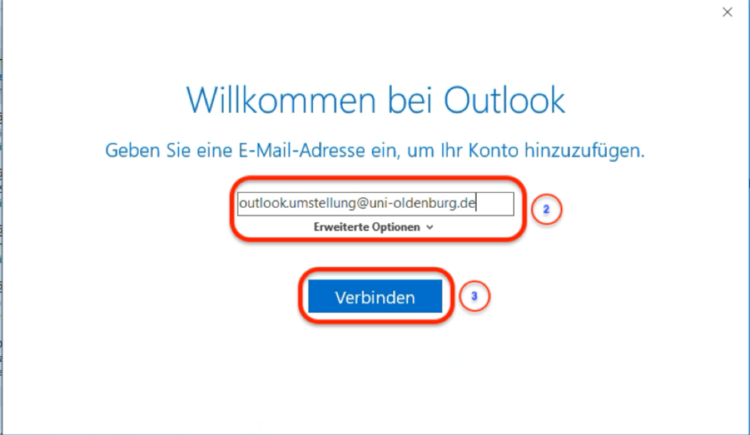
Once authorisation for a functional account has been granted, the functional account’s mailbox can be integrated directly into your own Outlook client using the functional account’s published email address (e.g. funktion-email-name@uni-oldenburg.de). Detailed instructions can be found here.
How do I add a valid functional account to my Outlook client?
These instructions are intended to help you set up or switch your account yourself.
We need to distinguish between two scenarios here.
Scenario 1: The email address you wish to use is already set up with your login details.
Scenario 2: The email address you want is not yet set up in your account.
Please check for yourself whether the email address is already set up in your account (Case 1) or whether the email address you want is not yet displayed in Outlook (Case 2).
Case 1 – The email address you have chosen is already set up with you, with
login details
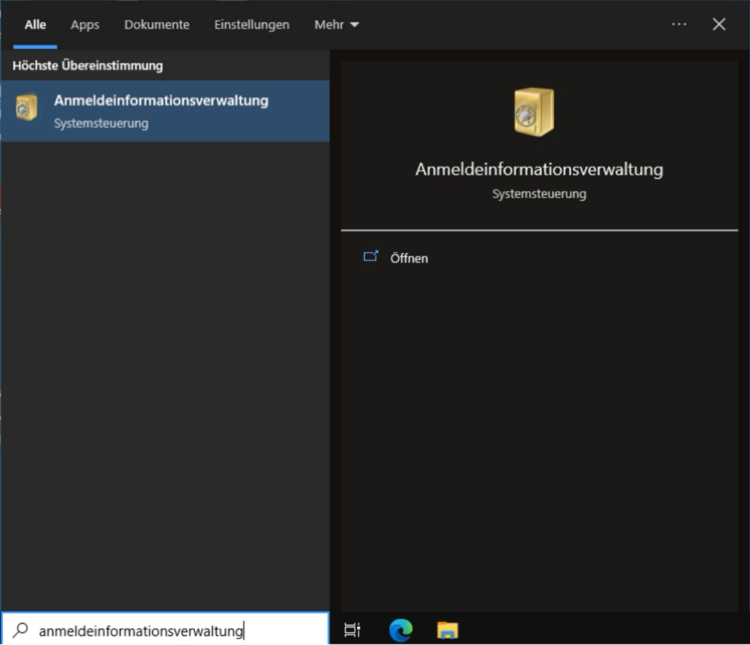

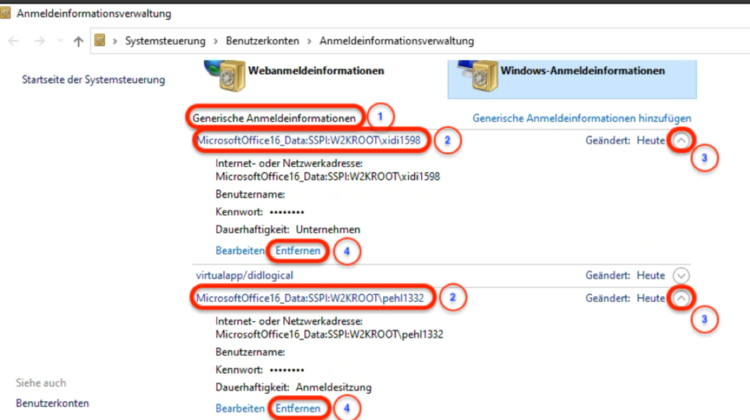
Case 2 – The email address you want has not yet been set up in your Outlook
account
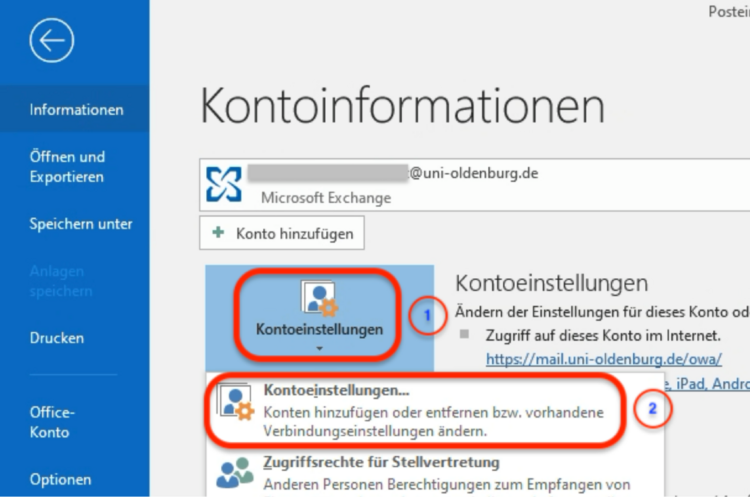
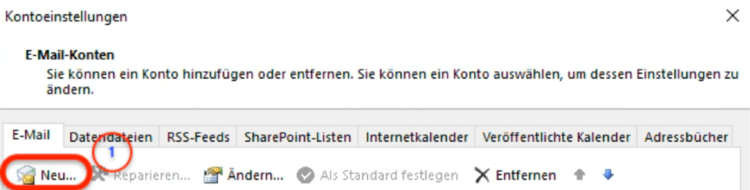

What if I am currently the account holder, but someone else is supposed to manage the account?
If you are no longer the person who should manage the account, you can transfer responsibility for the account to another person at any time by going to https://konto.uol.de and selecting ‘My Accounts’.
Alternatively, if you do not wish to relinquish responsibility for the account itself, you can also authorise other people to take on additional management duties for a functional account. Alternatively, the people who are to take over the administration can visit the service page and, via ‘Request administration of another functional account’, ask the account holder for permission to manage the account. This request can then be reviewed and approved or rejected by the account holder.
Where can I find the Self-Service Portal to set permissions for other people or request the administration of a role-based account?
The authorisation form can be found at https://konto.uol.de → Application → ‘Authorised users for FKT account’.
There, those responsible for the functional account can grant authorisation to other individuals, enabling them to access the account via email and interactively using a shared second factor.