

Working with images without barriers
Working with images without barriers
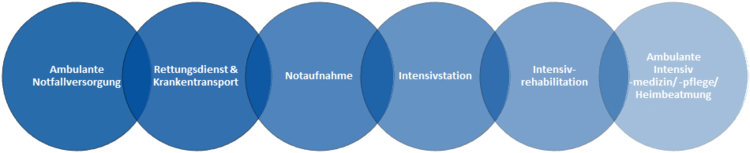
Problem:
- The graphic contains text that is not legible for blind people, for example.
- The text is also difficult to read for sighted people as it is quite small and has too little contrast to the background, especially to the right.
- The text is also illegible for smartphone users, as the graphic is displayed even smaller there.
Remedy:
- When embedding the image, an alternative text as well as a title can be set.
- and 3. the display problems of the graphic (too small and too little contrast) can only be partially solved by reworking the graphic, while the size problem on small screens cannot really be solved. It should therefore be considered whether it would be better to work with text from the outset instead of the graphic.
In this case, the terms could also be written in the caption, as this can always be read on smartphones.
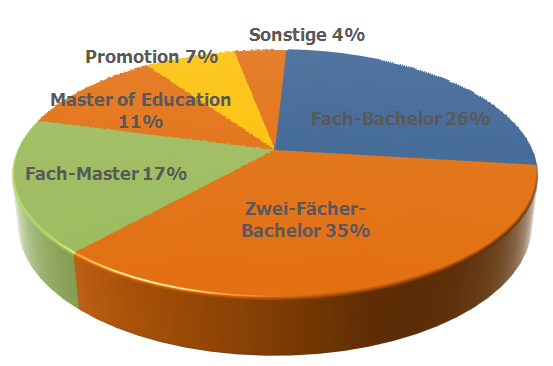

You will study the two subjects to the extent of 60 CP each, the area of specialisation to the extent of 45 CP and the Bachelor's thesis module to the extent of 15 CP.


Semester overviews: Winter semester 19/20 and summer semester 19
Students (headcount and case statistics) by degree programme and School
- WiSe 19/20 


- SoSe 19 
Students (case statistics) by degree programme and semester
- WiSe 19/20
- SoSe 19
Combinations of subjects in dual-subject Bachelor's programmes
- WiSe 19/20
- SoSe 19


Supplement: Download documents
Download documents are not websites and therefore often require a different programme to open them. It is therefore usually up to the provider of the respective programme to ensure accessibility. Exceptions to this are PDF files, for example, which can be displayed by most web browsers without additional software.
Accessible PDFs
PDF files that have been generated from Word using the print function, for example, automatically contain the associated text passages as system text and are therefore at least in principle also readable for blind people.
Making non-accessible PDFs accessible
If a PDF contains a scanned document, this is initially only available internally as a graphic and is therefore not accessible. However, accessibility can then be achieved by running text recognition (OCR) over the document.