

The navigation menus on the university websites
The navigation menus on the university websites
Navigation menus enable navigation in the page structure and at the same time make it easier to find your way around the context in which you are currently located. For orientation and navigation in the superordinate structure, there is the breadcrumb line above the page content and the green sub-navigation menu for navigation to the subordinate pages. Further menus can be added to the page content.
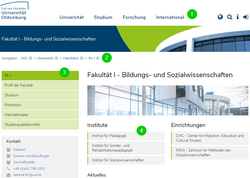
There are several menus on our websites.
- The main menu (1) is designed centrally and cannot be influenced from within a website.
- The breadcrumb line (2) emphasises the position of the current page within the overall structure and also offers quick navigation options to parallel pages thanks to its submenus.
- The green sub-navigation menu (3) in the side column lists the current page with its sub-pages. Instead, in certain cases the almost identical looking project navigation menu can also be activated here, which is inherited by the subpages.
- Optional manually inserted menus (4) in the page content create further convenient navigation options
(→ see Custom navigation menus)
Supplement to (3): "Project navigation" - inheriting the sub-navigation menu to subpages
If, for example, a project only consists of a start page with a few direct subpages, the menu from the page column can be inherited to these subpages. The same menu then appears on the subpages as on the start page, but the current page is highlighted. This allows you to quickly jump between the web pages of the project. (See video on project navigation.)
Checklist for menus
To work with the menus in the best possible way, please pay attention to these points:
- Check how a page is displayed in the breadcrumb row . To keep the entry compact, assign a breadcrumb title in the page properties.
- Check how the page is displayed in the sub-navigation (if available, in the page column). If the page title is too long as a navigation entry, assign a more compact navigation title in the page properties.
The breadcrumb line
The navigation bar (a so-called "breadcrumb navigation") is located at the top of the page content. This visualises the current position within the overall structure and also offers direct links to neighbouring websites through the expanding submenus.
For reasons of space, the entries in the breadcrumb line should be as compact as possible, i.e. shorter than the actual page title. You can set the corresponding breadcrumb title in the page properties of each page in the [General] tab. If set, the page title is then replaced by this short title in the breadcrumb line.
Automatic shortening of the navigation bar
In addition to the manual shortening of the breadcrumb titles by yourself, there is also an automatic function that ensures that the breadcrumb line does not become too long: If there are more than three levels in the navigation bar, only the last three are displayed in full. The ones before that are reduced to an icon [...] and expand again by clicking on them.
Submenus in the navigation bar
In addition to being able to access the parent pages of the currently displayed page, the subpages are also displayed when the mouse is moved over them. This allows you to access parallel pages at any time without having to call up the parent page first.
The naming of the subordinate entries in these submenus corresponds to that in the green sub-navigation, and is therefore influenced by the "Alternative navigation title" that can be set in the page properties, if this is defined separately.
The green sub-navigation menu
If required, the green sub-navigation menu is automatically inserted in the side column of the website layout. This is a submenu of the current page. The sub-navigation menu therefore shows the direct sub-pages of the currently displayed website, if there are any and they have not been labelled as hidden in the menu. If a page does not contain any subpages, this menu remains hidden (unless it is inherited from the parent page in the form of the project navigation ).
If you want to insert an entry in the green sub-navigation menu, this is therefore always done by creating a new sub-page, which is then automatically listed in the menu.
Keep the text of the menu items compact
The page titles of the subpages appear as clickable menu entries by default. However, long page titles quickly make the menu confusing, so you can also assign a (shorter) navigation title to each page, i.e. a title that should be used in navigation menus. If such a navigation title exists for a page, it is used in the menu instead of the (long) page title.
Edit page properties
Special feature: The header entry of the sub-navigation menu
The header entry of the menu primarily has an orientation function. As it corresponds to the current page, there may be a duplicate text with the page title next to it if no (more compact) navigation title or (even shorter) breadcrumb title has been assigned that differs from the page title. Depending on the length of the text, this can look unattractive.
The text of the header entry is generated according to this logic:
- If available, the navigation title of the page is used.
- Otherwise, if available, the breadcrumb title of the page is used.
- Otherwise, the page title is used (⇒ text duplicate!)
Hide green sub-navigation menu
If (in exceptional cases) you want to hide the green sub-navigation menu on a page, e.g. because the page content already refers to the subordinate pages in another way, you can do this in the page properties of the relevant page in the [General] tab by ticking the Hide sub-navigation box.
Hide a web page in the green menu
By default, all subordinate web pages are listed in the automatically generated sub-navigation menu. However, you can configure an individual web page so that it is not listed in such menus, e.g. if this page only contains more detailed information on a term that appears in the content text of the parent page and should only be linked from there.
To hide a page in the sub-navigation menu, call up the page properties of the page in question and then the [Access] tab. Here you can hide the page in the menu with a corresponding switch.
Urgent recommendation regarding reference page types
In principle, only actual sub-pages of the current page should appear in the sub-navigation menu, i.e. normal standard pages with their own content. It is technically possible to create pages that have no content at all, but instead function as a "link" to another TYPO3 page or a link to an external http address. When navigating, however, it is confusing if clicking on an entry in the green sub-navigation menu takes you to a completely different page that is not a sub-page of the current page.
The project navigation menu: Inheritance of the subnavigation on subpages
What the project navigation menu is and can do
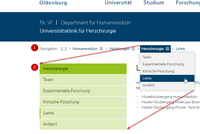
The project navigation is a variant of the "normal" sub-navigation, which can be inherited to the subpages. This means that the menu from the top page is transferred to the subpages.
See below: Video on project navigation
Let's assume you are organising a conference. Then the page structure could look like this:
- Conference homepage
- Conference programme
- Registration form
- Accommodation options
- Journey to the conference
It is therefore a very simple structure, consisting of a homepage and a few sub-pages. There are no deeper substructures, so it can also be described as a flat structure.
In order to be able to navigate as easily as possible within this structure, it would be helpful to see all pages of this "project" in the navigation menu, whereby the currently active page is recognised. This is exactly what is possible with project navigation.
Features of the project navigation
- On the start page (of the project or similar), the project navigation behaves identically to the normal sub-navigation.
- The same overall menu appears on the subpages as on the start page, i.e. it is inherited from there. The currently active subpage is highlighted in a darker green colour.
- Important: The normal subnavigation (menu of the subpages of the subpages) is therefore no longer displayed on the subpages! - This is why project navigation only works in flat page structures where the normal sub-navigation is not required. Project navigation is therefore not suitable for the home pages of Schools, Institutes, etc.
- Important: If the project navigation is activated, it automatically appears on all subpages and cannot be hidden there! If, contrary to the recommended use, there are also sub-subpages, these will also inherit the project navigation from the start page! The menu therefore looks identical on all subpages.
For which pages the project navigation is suitable
- Website for an end of project
- Website for a conference
- Website for a degree programme
- Personal homepage (only for extensive content; it is better to use only one page with drop-down elements, see demo personal page, then no separate menu is needed)
- Homepage for a department, small institution, student body or similar (as long as the content can be displayed with a flat structure without sub-subpages)
How to activate the project navigation
- Please note: Project navigation can only be activated on the start page if there is no more than one level of subpages. If there are already sub-subpages of this start page, the project navigation cannot be activated.
- Hiding the sub-navigation: On the start page where the project navigation is activated, it can be hidden if required, just like the normal sub-navigation. There is another switch in the page properties for this purpose. This makes it possible to create your own links to the subpages in the content section of the start page without them duplicating the automatically generated navigation menu.
However, it is not possible to hide the navigation individually on the subpages! If the project navigation is used, it must be displayed on all subpages.
Menus in the page content
If required, menus can also be inserted manually in the page content, e.g. to list subordinate facilities or pages. However, care should then be taken to ensure that no menus are duplicated on a page.
Video of the training course on using the project navigation
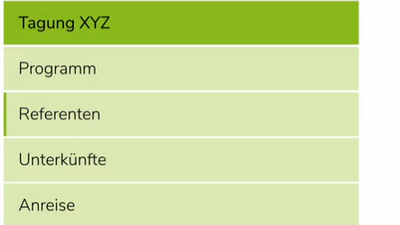
An online training course on the project navigation menu showed how the project navigation works, how it is activated and where it differs from the normal sub-navigation.
Note: The video is only available to members of the university.