

Contact details
Format contact data
If contact data is entered manually, it should be formatted appropriately (see also further information on formatting!). There are corresponding symbols in the style menu of the editor module that can be assigned to a respective paragraph:
Contact details
It is part of the concept of our websites that a contact option should always be offered in addition to the content. This should appear uniformly at the top left (in the side column) and contain the word "Contact" as the heading. This way, anyone visiting our website will always be able to find a suitable contact person quickly if required.
What data is contact data?
- Only data that is actually related to making contact is considered contact data.
- Other information about the person, such as their main areas of work, CV, courses, profile picture or publications, is profile information.
This distinction is important for the respective placement within the website!
When embedding contact data from Stud.IP, our Stud.IP module supports you in placing the right data in the right place.
Where which contact details are placed on the page - and which are not!
Side column
For individuals (personal page or similar)
Use the Stud.IP plugin and activate the fields that contain the actual contact data. The appropriate fields are automatically pre-selected if you use the Stud.IP plugin in the page column!
For several persons (team list or similar)
Create a normal Text&Media element, give it the title "Contact" (or "Contact" on English pages) and create the list of persons manually (i.e. without the Stud.IP plugin) - see example at the bottom of the page column.
Important: If there are several people, you should not list complete contact details for reasons of space, but only link the names of the people to the pop-up business card (from the university search) or to the personal homepage.
Checklist for the side column
- ☑ No photos of people!
- ☑ No profile information (CV or similar) - profile information belongs in the main content column!
Main column
In the main content column, use the Stud.IP plugin to display a person's contact details and activate the fields "Avatar" and "Focus" as well as the "Name" if it is not identical to the page title.
On personal pages, all other profile information is also included in the main column:
- Curriculum vitae
- Courses taught
- Publications
- Categories (Other topics)
Other fields not provided by Stud.IP (e.g. memberships, projects, etc.) can be inserted manually as drop-down elements in the main column. → This method is no longer fully recommended, new instead:
Note on categories (Other topics):
With "Categories" you can now create any of your own topics with title and description text in Stud.IP, which are then not only displayed within Stud.IP in the profile, but can also be output on TYPO3 pages as well. This makes it possible for personal websites to be fed completely from Stud.IP. Instructions Stud.IP categories
Formatting the contact data
Paragraph symbols (e.g. for telephone, email, office hours, etc.) can be assigned to make the contact data quickly recognisable. These can be found in the Styles menu (top left in the TYPO3 rich text editor).
Please note
- One paragraph always only one paragraph symbol from the Styles menu!
(Technically, several would be possible, but this does not lead to any meaningful results). - Only assign a male symbol to persons...
- if they are linked (to the pop-up business card or to the personal homepage)
- and if no other contact details are given for the person - see example below : Several people
Otherwise it looks as if the person's name is equivalent to the telephone number etc., but instead it is to be regarded as superior
- If several people are mentioned, please only link the person's name (to the pop-up business card) and do not add any further contact details, as this would be too much overall.
Comparison: Contact data of several persons vs. single person
Example: Several people
If several people are to be named, this is done manually, i.e. not with the Stud.IP plugin. For reasons of space, only the names of the persons are mentioned and linked to the personal websites or pop-up business cards of the persons:
Example: Personal page
Stud.IP plugin (see notes on using the plugin). Only the actual contact details should appear in the side column. To do this, simply click on the small header symbol to the right of the selection box of the fields to be displayed, then the appropriate fields will be activated.
Volker Burggräf
Press & Communication (» Postal address)
Main focus of work
Internet coordinator of the university
- Website- and TYPO3 CMS Administration
- TYPO3 courses, documentation and support
- Advice on building websites
- Serving the university email distribution lists
- Online campus map of the university
Special feature: Inheritance of contact data
We have an automatic inheritance function so that the contact details can be conveniently displayed on several websites.
If the contact content area (top left) is not filled on a website, the page inherits the contact information from its parent page.
⇒ This means:
If contact data appears unintentionally on a website, it has obviously been inherited from the parent or superordinate page. If the inherited contact details do not match the current page, simply add more suitable contact details in the Contact section (top left).
Attention: The inheritance of contact data on subpages may only take place overnight
Normally, the subpages do not "notice" a change to the inherited contact data immediately, but only the next day. However, the refresh can be accelerated manually by manually deleting the cache of an affected page, for which there are two options:
- Call up the page in TYPO3 and then click on the lightning bolt symbol in the top right-hand corner.
- While you are logged into TYPO3, call up the page in its public view and then reload it while holding down the Shift key - or press the key combination Ctrl-Shift-R (Macos: Command-Shift-R).
Do not rewrite, but embed from Stud.IP
If contact details of one or more persons are inserted into a website, these should not be entered manually, but imported from Stud.IP instead. If the data then changes, this only needs to be done centrally in Stud.IP, and wherever the data is embedded in web pages, it will then update itself!
Prerequisites for using the Stud.IP plugin:
The relevant data fields must first be filled in in Stud.IP
1. and
2. released for public display,
see uol.de/kontaktdaten
TYPO3 has its own extension module (plug-in) for embedding Stud.IP-based contact data, with which the data of individuals and groups of people can be inserted.
Instructions: Inserting the Stud.IP plugin into a website




These instructions use the variant for the contact details of a single person. Other variants, e.g. "Group", are possible, but require that groups of people have been defined in Stud.IP within the selected institution.
1) Create a new content element of the type Stud.IP: Person (business card) from the "Typical page content" section (see Fig. 1, marker 1).
2) Call up the Plug-in tab there. In the options that you now have to set, you will first be asked for the Stud.IP user name of the person to be displayed. You can determine this by entering the real name of the person in the input field (see Fig. 2).
After entering at least five letters, a hit list should automatically be offered where you can select the desired person by clicking on it.
Firefox special feature: The hit list for selecting the desired person may not appear automatically. In this case, you can delete the last character once after entering it and the list should then appear.
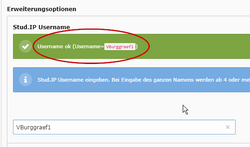
3) After selecting the person, the message area above the input field should change:
4) Then select the desired layout ([Standard],[Short layout] or[Standard (with drop-down elements)] - in the latter case, the courses, publications and CV are displayed as drop-down elements).
In the short layout, the personal picture (if available) is left-aligned, in the full layout it is right-aligned. In addition, some elements are formatted more compactly in the short version. Further layouts can be offered if necessary.
5) Now specify which fields (= personal data) should actually be displayed (see Fig. 4). To select several fields, please hold down the CTRL key (Apple: CMD key).
5a) Field selection even easier: For the display of contact data on a person page(!), there are certain conventions as to which data should be displayed in the main column and which in the side column. You can select the corresponding fields by clicking on the small header symbol next to the field list (see Fig. 4)! Depending on the column in which you are currently using the Stud.IP element, the recommended fields will be activated automatically.
6) Depending on the selected person and selected fields, it may be necessary to specify certain entries. However, the relevant extra input fields are only displayed once the content element has been saved. Therefore, please click once on the [Save] button at the top and then switch back to the Plug-in tab. Further queries may now appear below the field selection list (see Fig. 5):
6a) Select institution: This means that the selected person belongs to at least two institutions. You can now select which of the institution-related contact data should also be displayed.
6b) Courses (period): If the selected person offers courses, the period to be displayed for this can be selected.
7) Finally, save the settings as usual using the [Save] or [Save and close] button in the header bar.
Alternative: Link with pop-up business card
A person's contact details do not always have to appear visibly on a website; it is often sufficient to simply mention the person's name and link to it. When clicked, the person's pop-up business card then appears:
This is possible for university employees who can also be found via the university search engine.
To create such a link:
- Open a new browser window, and search for the person in question in the Uni search engine (e.g. uol.de/suche/?q=burggr).
- Then copy the name of the person from the hit list in the "Name register" section (see image) by selecting the name with the mouse and then pressing the Ctrl-c key combination.
- Then switch to TYPO3 and paste the content of the clipboard into a content element of the type text using the key combination Ctrl-v.
The person's name then appears on the page and the link is also retained.
You can of course edit the text of the person's name afterwards, e.g. to change <last name, first name> to <first name last name>.

Check contact data embedded from Stud.IP
You can find more information on this point on the page Check Stud.IP plugins.
Video of the training on Stud.IP categories on personal pages

In an online training on the use of Stud.IP categories on personal pages, some visual changes of the Stud.IP plugin as well as the new possibility of embedding further topics ("categories") from Stud.IP were shown. You can watch the video here.
Note: The video is only available to members of the university.
Example of personal photo, centre of gravity and name
In addition to the actual contact details, profile information such as personal photo and main areas of work can also be transferred from Stud.IP to the website. If the profile information has been entered in Stud.IP in a suitable way, a harmonious appearance can be achieved.
An element like this can be used at the beginning of the main content of a person's page:
Volker Burggräf
Main focus of work
Internet coordinator of the university
- Website- and TYPO3 CMS Administration
- TYPO3 courses, documentation and support
- Advice on building websites
- Serving the university email distribution lists
- Online campus map of the university
Notes on this example
The combination of the focus areas, the person's picture and, if applicable, the name results in a good unit if you pay attention to the scope and formatting in Stud.IP:
- The job title is at the beginning of the specialisation field in Stud.IP and is formatted as heading 4 (this corresponds to the paragraph heading in TYPO3).
- The activities are created as an unsorted list, which results in a clear structure.