

News (News module)
News (News module)
If there are frequent news items that are to be presented on an institute homepage, for example, it may be worth using the news module. New news items then always appear chronologically before older ones. The news overview can appear horizontally scrollable or in a static two-column view. Teaser images can be used if required.
Note:
Sometimes the news module described here is not so suitable, e.g. when it comes to shorter news items or news items with very uneven content, where similarly long headlines and teaser texts are not possible, but would be necessary for a reasonably uniform appearance. In this case, current messages can also be created as pop-up elements with a date:
Current messages with pop-up elements
Video of the training on the message module

The functionality of the news system was presented and demonstrated in an online training course on the news module. You can watch the video here.
Note: The video is only available to members of the university.
Basic procedure for the messaging system
- A system folder should be created in which the messages are generated and edited.
- A new subpage is created for the detailed display of the messages. The message module is inserted into this in "Detailed view" mode.
- A message module in "List view" mode is added to the start page of the institution. This is used to display the news overview with the headlines, teaser texts and any teaser images of the news. A "more" button then takes you to the above-mentioned detailed display of the respective message.
1. create messages in a system folder
Create system folder and switch to the message view
The messages should be created in a system folder. This serves as a location in which the messages are managed. They can then be displayed on various websites.
Messages are usually edited via the relevant module "Web→News Administration" from the TYPO3 function column on the left-hand side.
The system folder is of course still empty at first. The "Create new news record" button can now be used to start filling it with news.



Create new message
Required entries
- In message processing, the fields[Heading],[Teaser] (short text for the overview page) and[Text] (long text for the detail page) must be filled in.
- The[Date & time] field is automatically filled with the current timestamp, but can also be re-dated manually.
Additional options
- One or more graphics ("media files") can be added in the [Media] tab. The first of the graphics also serves as a teaser image for the news overview (list view). All graphics are also displayed in the detailed view.
- Instead of filling the [Text] field (in the [General] tab) with a single text element, the message can also be composed of several content elements - just like a normal TYPO3 website - which offers more complex design options, e.g. if additional images or videos are to be used within the message. The [Text] field is then left empty, and instead several independent content elements are created in the [Content elements] tab.
- The message can be assigned to categories (in the tab of the same name) if there is a need to be able to filter out only the messages of certain categories at various points later on.
Create 2nd page for the detailed display of the messages
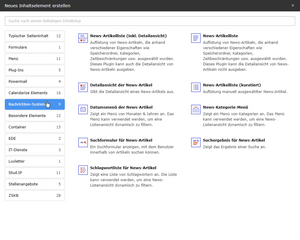
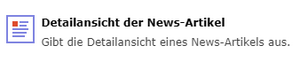

To display the news details, it is highly recommended to create a separate, dedicated article page. Only the news content is then displayed on this page, which is important for focussing and clarity of the appearance.
- A new page - e.g. with the title "News" or "Article" - is created as an article page and labelled as hidden in the menu in the [Access] tab.
- A new content element of the type "Detailed view of news articles" is created on this page (from the [News system] tab, see image).
- Within the new content element, switch to the [Plug-in:] tab.
- There, click on the folder icon on the far right under "Starting point" and select the previously created system folder in which the news items are located.
- In the [Other settings] sub-tab, in the [Page ID for list view] field, use the folder icon to select the start page of the device on which the message overview should later appear.
- The overview page is also selected in the [Page ID for "Back" link] field.
- The current article page is selected in the [Page ID for individual news view] field. (Does not necessarily make sense here, but will help us later).
The element is then closed and saved.
Addition: Show contact information in the side column

In the detailed view page for news articles, the "News extra fields" element can be inserted in the "Contact" area. If the field for further information has been filled with content for the displayed news item, this is then displayed in this extra element.
Variant: Output explicitly selected message in the detail view
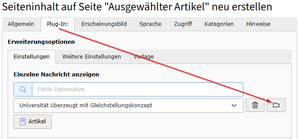
The content element for displaying the detailed view of a message can also be used to display a single message on a specific web page. The message is therefore taken from the message system and displayed as static text on the page.
3. create message overview

Creating the news overview is a little more complex because there are some additional setting options that need to be taken into account. At the same time, however, this offers the advantage that the view can be configured quite flexibly.
- Create a new content element and select the [News system] section. You can then select the "News article list" element (see Fig., point 1) - this is the default for normal cases, but there are two alternatives for certain special cases:
- "News article list (incl. detailed view)": This element can display the article list and the detailed view at the same time (see fig., item 2). This variant can be used if there is a separate "News" page or similar that is used exclusively for the news. It is then not necessary to create a separate page for the detailed view.
- "News article list (curated)": Here you can explicitly select specific news articles to be listed. This variant therefore contains a fixed selection and is not updated automatically when new articles are created (see Fig., point 3).
- Call up the editing of the content element to make adjustments:
- Set the [Sort by] field to "Specified date/time".
- Set the [Sort by] field to "Descending".
- In the [Template] sub-tab, set the [Template layout] field to "with image, scrollable" or "without image, scrollable" - depending on whether your messages contain a (teaser) image and whether this should be displayed in the message overview or not.
- This completes the preparation and you can now close and save the element.
- Finally, the news element may need to be activated, as it was initially deactivated after copying and pasting.
Optional: Static message overview instead of scrollable view
The scrollable look shown under 3.) is always recommended where further information is displayed in addition to the news overview, e.g. appointments, navigation menus, etc. On the other hand, it may also be desirable to have a static overview that does not scroll but displays the individual messages immediately as a static list. This is useful if, for example, a separate news page exists where only the news items are listed or a complete archive of all news items is offered.
To obtain such a static news overview, create a news element as shown under 3.), but change the [Template layout] field in the [Plug-in:] tab in the [Templates] sub-tab to "Tile look, static".
Variant: News entry as a link to an existing page instead of with your own text
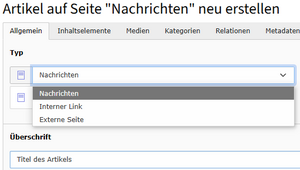
Normally, a message has its own content text in the [Text] field or in the form of its own content elements. Deviating from this behaviour, however, a message can also point to an existing website. The message itself then only contains the headline, the teaser and a date and otherwise refers to the relevant web page.
Procedure
When creating a message, switch the first field [Type] to either "internal link" (for existing pages within your site) or "external page" (for links to an http address to be specified). After saving, a selection field appears further down where you can specify the link destination.
Supplement: Use of images
Some notes on images:
- If a message contains images, the first image is also used as the teaser image by default. This can be prevented for a specific image by deactivating the [Show in views] field there (see Fig. 1).
- If a news overview with images is used, these are displayed above the news headline, i.e. the headline and the teaser move downwards accordingly. This only results in a uniform and harmonious appearance if a) all news items have at least one image and b) all images have the same proportions so that they appear at the same height in the overview (example: university news page).
⇒ Please make sure that the aesthetics are in order. If it is not possible to provide a suitable image for all news items, it may be better to use a template layout without images on the news overview. - If required, the copyright for the images can also be displayed

Supplement: Use of categories and keywords ("tags")


Messages can also be marked with categories and tags, and these features can then be used to find messages again. The message system has its own content element types for this purpose, which offer corresponding lists.
Categories and tags overlap in terms of content, as both are freely assignable extra features. A good way to differentiate between the two is to see categories more as content-related headings and tags more as specific terms that can have a meaning independently of them.
Addition: Display copyright information in news overviews
When using images with mandatory copyright attribution, this can also be done in the list view of news items (overview list), provided that the cover images of the news articles are also displayed there.
To do this, the CSS class figcaption must be assigned to the corresponding news content element in its [Appearance] tab. This will display the copyright information of the cover images of all news items (if available).
However, the copyright display can also be deactivated again for individual news items (e.g. if these are images from the UOL where such a mention is not required). This is done in the [Media] tab of the relevant article and there in the settings for the first image. By ticking there that the value of the [Copyright] field should be overwritten by your own text and then leaving this field empty, the value in the public view is cleared.
Example of template "with image, scrollable"
To be used on an institute homepage or similar

Time – medicine’s great promise
We Are Connected – Wind Energy Research

To encourage greater dialogue between local politicians and the public

Towards the goal of controlling individual electrons
Groundbreaking ceremony for new Medicine building

"The aim is a good place to grow up"

We Are Connected – International Office
Example of template "without image, scrollable"
Time – medicine’s great promise
more: Time – medicine’s great promiseIn search of reliable conclusions
more: In search of reliable conclusionsWe Are Connected – Wind Energy Research
more: We Are Connected – Wind Energy ResearchTo encourage greater dialogue between local politicians and the public
more: To encourage greater dialogue between local politicians and the publicExample of template "Tile look, static"
For a news page or news archive (here limited to 6 articles)

Time – medicine’s great promise
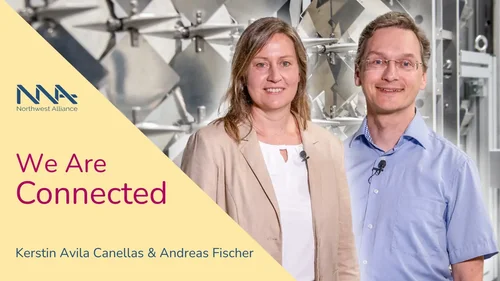
We Are Connected – Wind Energy Research

To encourage greater dialogue between local politicians and the public
Example of template "scrollable, text next to image"
Time – medicine’s great promise
more: Time – medicine’s great promiseIn search of reliable conclusions
more: In search of reliable conclusionsWe Are Connected – Wind Energy Research
more: We Are Connected – Wind Energy ResearchTo encourage greater dialogue between local politicians and the public
more: To encourage greater dialogue between local politicians and the publicTowards the goal of controlling individual electrons
more: Towards the goal of controlling individual electronsGroundbreaking ceremony for new Medicine building
more: Groundbreaking ceremony for new Medicine buildingExample of template "New appointees, scrollable"

Coast in the Anthropocene

Educational Psychology

Social Structure Analysis

Neuromodulation in Psychiatry

English Linguistics, Language Acquisition and Language Processing

Cultural Studies of Material Culture
Navigation via date menu of the news articles

Navigation via news category menu
Integrate a news search
The news system offers its own search option, in which you can search by text or date. You can decide independently where the search form is displayed and on which page the search results are displayed.