
FAQ
All Schools can now access the LOOOP platform(looop-share.charite.de) free of charge to share links to existing digital resources . The links are sorted thematically in LOOOP and can be assigned to subjects and cross-sectional areas as well as mapped against the NKLM. All you have to do is register there.
FAQ
A quick introduction to digital teaching
On this page you will find initial answers to frequently asked questions about digital teaching. Alternatively, we offer you a quick search for the content of our pages and a decision-making aid for digital applications. If you have any questions, you can of course contact us at any time.
How does the university's StudIP learning management system work?
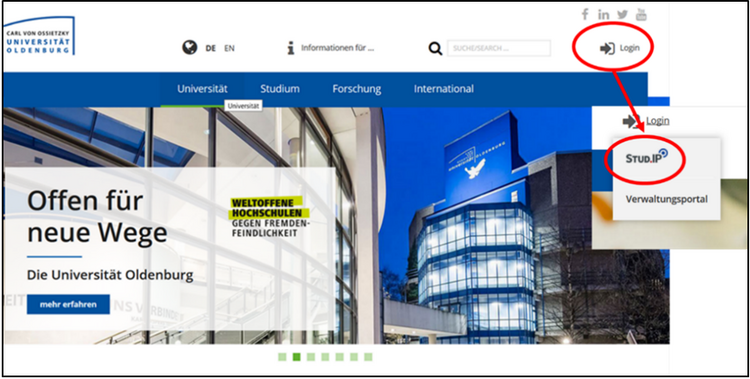
Go to the homepage of the University of Oldenburg. Click on the login symbol at the top right-hand side.
Enter your university ID (abcd1234) and your password. If you have forgotten your password, please contact IT services (7985555).
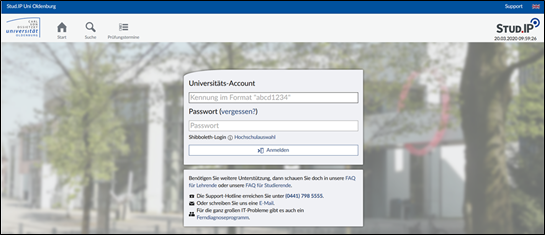
You are now logged into StudIP. Now click on the Teaching button.

You should now see your courses.
In this courseware you will find further information on Stud.IP and digital applications for your teaching.
If you have specific problems, you are welcome to contact us .
How do I upload files to StudIP?
You can watch this video tutorial or work with the following explanations:
After you have logged into your course in StudIP (see above), you can upload documents to the course via the "Files" tab.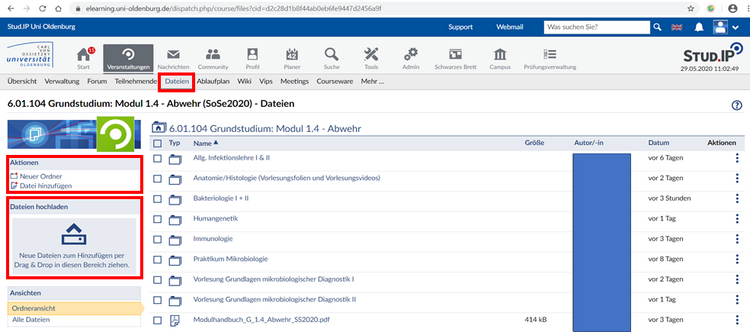
You have the option of creating a new folder or adding a file under Actions (see figure above). You can also use the "Upload files" window to simply drag a file into the window, which will then be uploaded automatically. (see upper illustration)
While the document is being uploaded, a window opens (see lower illustration). You can see a UFO on a blue bar. As long as the UFO is moving, the files will be uploaded. Depending on the upload speed and file size, this may take a few minutes.

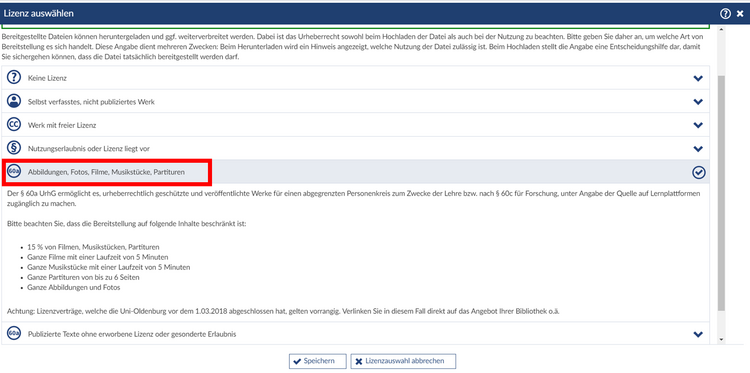
After the files have been uploaded, a data protection declaration must be made. If this is not done, the files will not be visible to the students. We recommend that you always select the 60a licence as soon as you have images in your presentation that are licensed (see image below).
I can't upload files to Stud.IP - the upload is always cancelled!
Stud.IP limits the size of the files that can be uploaded to 1.2 GB and automatically cancels the upload after ten minutes. Please check your upload speed and try again at another time if necessary.
What aspects of data protection/copyright do I need to consider?
Please take note:
- Video- and communication tools such as WhatsApp, Slack, Hangout or Skype are not authorised by the university for data protection reasons. We ask that you only use programmes for teaching that have been approved by the university.
- When making teaching and learning materials available to students, data protection aspects must be taken into account. When uploading documents via Stud.IP, information on licence rights must be provided. If you would like to use other people's materials for your digital course, copyright protection comes into play. With §60a of the Copyright Act, the legislator has created clear guidelines for science and teaching. For example, only part of a work can be made available and only in a protected area, for example only to the participants of a course in StudIP.
- The Federal Ministry of Education and Research has created an overview of this; the most important points for teaching are explained from page 33 onwards. There is also a video.
Are students allowed to film my lecture or take photographs of the slides?
Students are not permitted to record a lecture without the prior consent of the lecturer, as this infringes upon the lecturer’s personal rights and may also infringe upon those of other students present. Furthermore, unauthorised recordings contravene copyright law and data protection regulations. Further information on this topic can be found in this brochure published by HAW Hamburg.
How can I communicate with the students?
Stud.IP offers various ways to get in contact with students (for technical implementation, see also: Quick guide to using Stud.IP.
The easiest way is to send students an email via the "Participants" tab. You can send an email to all students of the course via the letter symbol on the right-hand side of the window.
The forum or the wiki offer further opportunities to communicate with students. A chat function can also be activated via the"Blubber" tool. You can activate all these functions for your course via the Administration tab.
Further information can be found on the pages on using Stud.IP.
How do I convert my lecture into a digital course?
There are various ways to organise a lecture digitally:
- Set the slides to music and set a date for questions or open a forum.
- Hold the lecture live, e.g. in Big Blue Button, and let the students ask questions in the chat, for example.
- Divide the lecture into smaller units, set the slides to music and use the StudIP plugin
courseware courseware. For example, you can always include short multiple-choice questions for students after a chapter. This interactive form of teaching should also offer an appointment or a forum where students can ask their questions.
Further information can also be found on our pages on asynchronous teaching, on the e-didactics pages or in this courseware.
How do I dub my lecture slides?
Various tools are available for dubbing lecture slides and other digital documents. You can find more detailed information here.
A brief overview:
- The simplest solution is to record PowerPoint slides directly via the programme. Simply select the Slide Show tab and click on "Record slide show". PowerPoint records the video or audio slide by slide so that you can also review individual slides. Afterwards, it is best to export as a standard 480p video so that the file is smaller.
- The free tool OpenCast Studio can be used directly via the Internet browser without registration.
Please note the following when dubbing your slides:
- Create comprehensible units: Divide the lecture/content into several thematic sub-units (max. 15-20 minutes lecture per sub-unit).
- Speak more slowly than you are used to and preferably more clearly. Take a break when changing slides.
- If you make any mistakes, leave them in the admission. Nothing is more boring than a perfectly spoken text.
How do I convert my seminar/small group/project into a digital event?
Information on planning and organising synchronous teaching (online presence teaching) can be found here. We offer further tips and instructions for digital formats under Designing digital teaching.
You can find a general description of how to convert standard face-to-face teaching formats into digital formats on the e-didactics pages.
If you would like individual advice on creating your own digital teaching concept for your course, please directly.
What options do I have to make my event digitally interactive?
First of all, you need to think about what content you want to make interactive and how you want to interact with the students. It does not make sense to convert a course that was previously offered as a face-to-face event 1:1 into a digital event via video conferencing. It is very exhausting to follow a video conference for a longer period of time (~45 minutes is usually feasible), and due to technical circumstances (university: server capacities, participants: data transmission) the quality of the event will sometimes not be sufficient or the event will not be feasible at all.
You should plan well in advance how you want to convey the content. Theoretical content should preferably be provided asynchronously in advance; you are also welcome to use the opportunities in Stud.IP to collaborate with students and answer questions and to support students in self-study.
Short teaching videos make it easier to convey complex teaching content and, once created, can be used again and again for the course.
Use video conferencing for digital face-to-face teaching, but preferably well prepared and in combination with asynchronous formats to discuss and reflect on teaching content and clarify questions.
BBB is not working properly - What can I do to improve my connection?
BBB is currently one of the most stable conference tools, as the university provides its own server capacities. Should you still encounter problems, please try the following:
- The Chrome browser works best so far, even on Apple devices.
- It is best to mute all microphones except that of the speaker.
- A poor internet connection (below 16000 MBit) can lead to a drop in performance. You can counteract this by
- reducing the video transmission quality or switching it off completely
- switching off the connection to the VPN tunnel
- stop sharing the screen
- closing all programmes with Internet access in the background
- closing all apps on your mobile phone.
Remember that optimum sound quality is most important for online events. It is therefore better to switch off all cameras in the event of disruptions and problems so that all participants can receive the audio without errors.
My question was not answered!
Further FAQs on e-learning and the implementation of digital teaching are answered in the e-didactics blog. If you have any questions about reorganising your own course or would like information about digital teaching, please us directly.